
Prerequisites
Before your Start
Configure your Extole Campaign
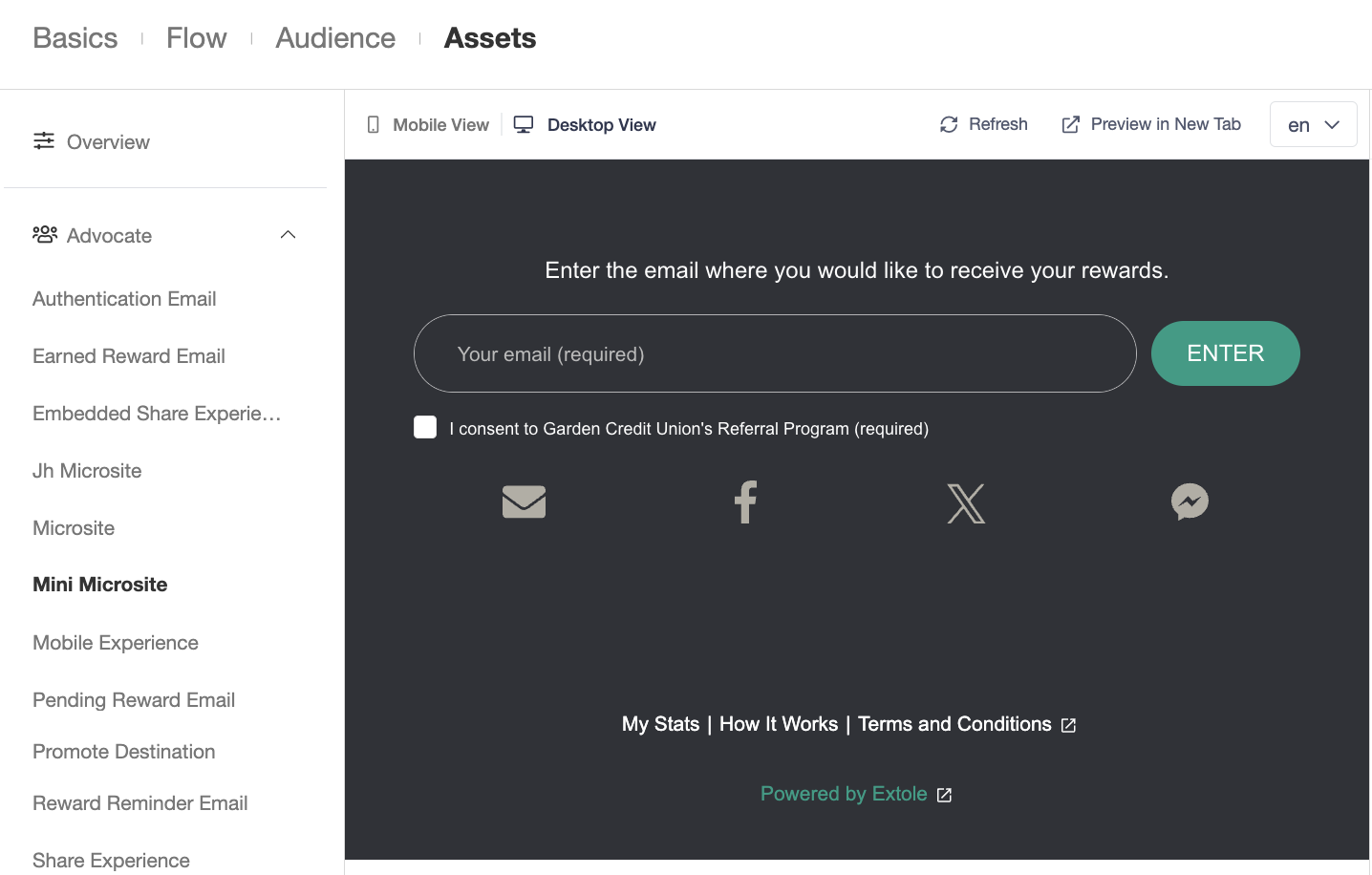
Submit a request to your Extole team to add thejh microsite and mini microsite zones to your Extole campaign. Then configure the mini micrositezone that was added to your your Extole campaign to match your branding (this is the zone that the Banno dashboard card will pull content from.)
Configure the Extole plugin in the Banno People app
Configure an External Application in the Banno People app
Follow the instructions here to add a new External Application to your Banno People account. Use the following values for the configuration:| Field | Value |
|---|---|
| Name | Refer a Friend |
| Partner | Extole |
| Require PKCE | Checked |
| Link Type | PluginCard |
| Redirect URI | Enter the following URLs, but replace the refer.brand.com portion of the URL with your Branded Program Domain, which can be found in Extole’s tech center.https://refer.brand.com/authenticatehttps://refer.brand.com/zones/jh-micrositehttps://refer.brand.com/zones/mini-micrositehttps://refer.brand.com/zones/microsite |
Configure Second Application for Full-Screen Experience (Optional)
You can configure a second Application for a full screen Experience accessible within the sidebar. You’ll repeat the configuration above but set it asLink Type of Rewards
Additional Scopes and Claims to be Added to Token (Optional)
By Default, Extole will make a request for the following scopes:openidemailprofilehttps://api.banno.com/consumer/auth/user.profile.readonly
given_namefamily_nameemail
Configure your Dashboard in the Banno People app
Follow the instructions here to add a new Plugin. Use the following values as starting points:Set Up Card Action (Optional)
If you configured a Full-Screen Experience application above, configure the card action to load that application instead of the default action.Configure a Webhook in the Extole platform
Create Webhook Key
- Navigate to the Security Center in the Extole platform and select
+ New Key - Enter
Banno Consumer APIas the Key Name - Select
Webhookas the Key Type - Select
PASSWORDas the algorithm type - Copy your Client ID from the Banno People dashboard and paste it in the Partner Key ID field
- Copy your Client Secret from the Banno People dashboard and paste it in the Key field
- Click
Create Key
Create Webhook
- Navigate to the Tech Center > Outbound Webhooks in the Extole platform
- Select
+ New Webhook - Enter
Banno Webhookas the name - Select
Genericas the Type - Copy the Consumer API URL from your External Application in the Banno People Dashboard and paste it in the URL field
- Select
POSTas the Default Method - Click Save and reach out to your Extole team to have them review and finalize the configuration