
Overview
This guide covers the necessary steps for setting up a successful referral program with Extole.- Brand Your Program
- Tag Your Site
- Enable Site-to-Store
- Reward Your Customer
- Retrieve Your Opt-Ins
- Design Your Experience
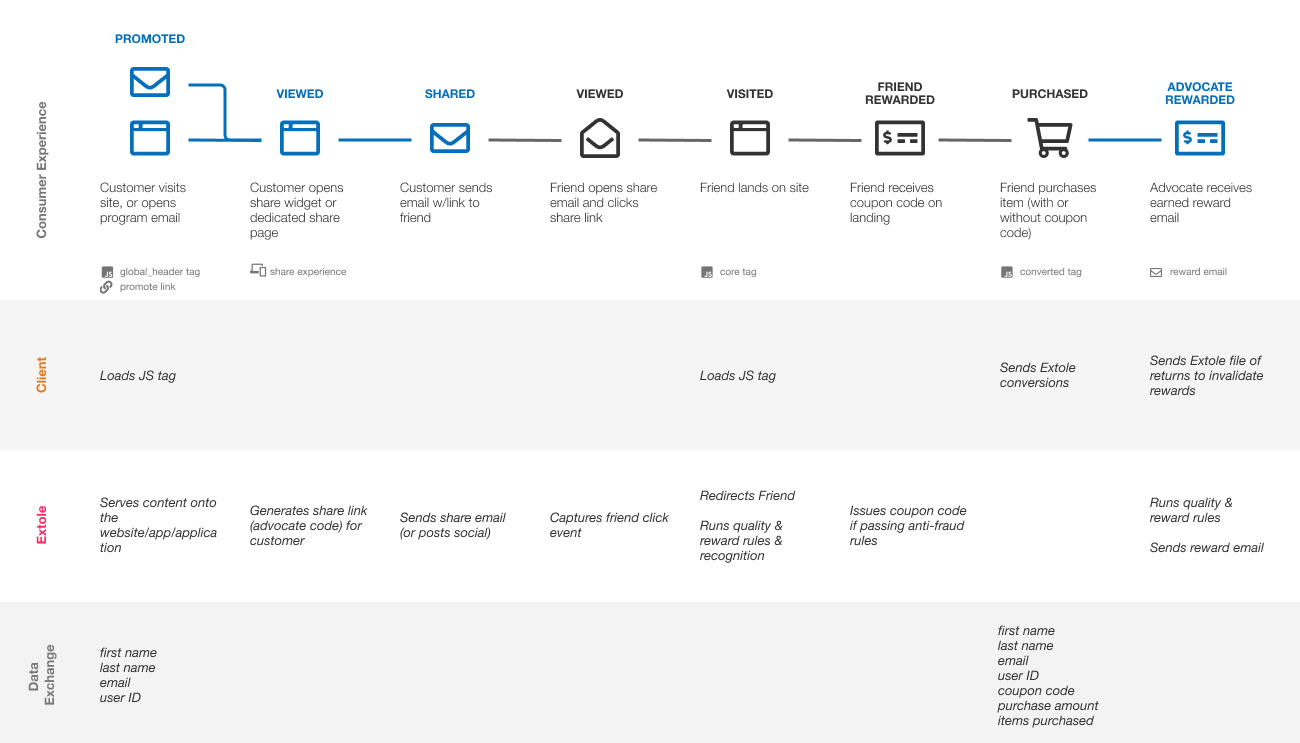
Brand your Program
Create a CNAME for your Domain
Task DurationThis task will typically take an IT/Ops engineering team 10–15 minutes to complete.
Send from Your Branded Email
<ImproveOpenRatesCallout /> The referral program will send program emails from you to your customers:- Welcome Email
- Advocate Stats Email
- Earned Reward Email
do-not-reply@mycompany.com. Once this email has been identified, Extole can check if it is configured to allow Extole to send emails from this address.
For details on how to update your SPF DNS records and install Extole DKIM keys, please reference Extole DNS Requirements.
Tag your Site
Task DurationThis task typically takes a web developer 1–2 days to complete.
Add the Core Tag (Extole’s JavaScript Library)
Extole’s JavaScript (JS) library goes on all of your pages. It enables all Extole functionality: call-to-action delivery, sharing experience display, and event tracking. Add Extole’s JS Library as follows:do-not-reply@mycompany.com
Add Marketing Tags
Extole displays CTAs that promote the program directly. Marketing tags tell Extole where to serve CTAs on your website. They also enable tracking, so that you can monitor which marketing placements are driving participation in the program. Your Extole referral campaign comes with standard marketing tags, which you can enable or disable in the Campaign Editor of your My Extole account:global_headerglobal_footerproductconfirmationoverlay
global_header
An example marketing tag looks like the following:
global_footer
| Field | Value |
|---|---|
first_name
recommended | This should be passed to a marketing tag if the advocate is logged in and their first name is known.E.g., April |
last_namerecommended | This should be passed to a marketing tag if the advocate is logged in and their last name is known.E.g., Advocate |
emailrecommended | This should be passed to a marketing tag if the advocate is logged in and their email is known.E.g., april@advocate.com |
partner_user_idrecommended | This should be passed to a marketing tag if the advocate is logged in. This is YOUR unique identifier for this person such as an account ID or member ID.E.g., 00O40000004SA1AA |
Track Conversions
In order to reward your customers for completing a desired action, such as a conversion, you need to communicate to Extole that the event has happened by adding the conversion tag—typically to your order confirmation page. This passes information about the conversion to allow Extole to attribute the purchase to a referral when possible, run quality rules, and run reward rules. An example conversion tag looks like the following:product
| Field | Value |
|---|---|
email
required | On the conversion tag, it indicates the email address of the person making the purchase. This is used to help understand advocate recognition, referral quality, and allow promotion and customer support.E.g., julio@friend.com |
partner_user_idrequired | On the conversion tag, this is YOUR unique identifier for this person making the purchase such as an account id or member id.E.g., 12304qne46 |
order_idrequired | On the conversion tag, this is YOUR order number that uniquely identifies this transaction. |
cart_valuerequired | On the conversion tag, this is the value of the purchase. Ideally, this is the gross cart value before coupons have been applied.E.g., 847.99 |
coupon_coderequired if available | On the conversion tag, this is the coupon code that may have been used to make the purchase. |
productrecommended | On the conversion tag, this is the list of products included in the purchase. This is used for reporting and product specific programs.E.g., “sku03,sku02” |
Manage Site to Store
Task DurationThis task typically takes a web developer 1 week to design, build, and integration test with Extole.
- API
- File upload
Track Offline Purchases - API
Extole requires API calls from the account systems to authenticate with an API identifier provided in the header (OAuth key). Your keys are managed through the Security Center of My Extole. Create your first key via the “Create New Access Token” button. Our system will temporarily display the newly created random key for you.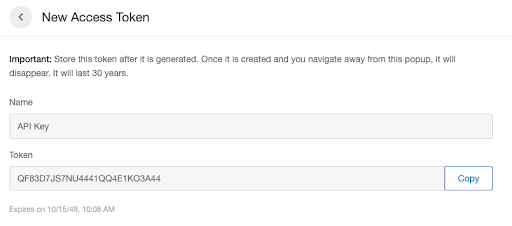 Once your API key is created, you can test successful authentication using the Admin API method:
confirmation
Event API Call
For each purchase that occurs in store, an API request is sent to Extole. It is fine for the same order to be sent by the tag as well as by the API as Extole will automatically deduplicate based on the order ID. An example API call looks like the following:overlay
The response will be an ID like the following:
"email": "april@advocate.com"
| Input Field | Value |
|---|---|
email
required | Idicates the email address of the person making the purchase. This is used to help understand advocate recognition, referral quality, and allow promotion and customer support.E.g., julio@friend.com |
partner_user_idrequired | This is YOUR unique identifier for this person making the purchase such as an account id or member id.E.g., 12304qne46 |
order_idrequired | This is YOUR order number that uniquely identifies this transaction. |
cart_valuerequired | This is the value of the purchase. Ideally, this is the gross cart value before coupons have been applied. |
coupon_coderequired if available | This is the coupon code that may have been used to make the purchase. |
Track Offline Purchases - File Upload
If you are looking for a low-technical-lift alternative to API calls, then you can leverage Extole’s batch processing functionality. You can compile all your purchases onto a CSV file and upload the file for processing directly from your My Extole account. To upload a file, complete the following steps:- Go to Tech Center > Batch Jobs
- Click + New Batch Job
- Descriptively name your file
- Drag and drop or browse for your file (your file must have an extension of CSV, PSV, or JSON)
- Save the job (it may take some time for your file to process)
first_name
If you would like to upload your file programmatically, you can set up SFTP access. Navigate to the Tech Center main hub and click the + New Server button. You can follow the step-by-step instructions found in the Extole’s SFTP Server guide.
Reward your Customers
Your Refer A Friend programs can be configured to reward your advocates and friends with any combination of reward types. These could be either coupons, account credits, gift cards, etc.Reward TypesRead about Extole reward types in our Product Docs Rewards Overview.
Retrieve your Marketing Opt-ins
Your referral program will typically have a checkbox on the advocate share experience and the friend email landing experience allowing the friend to opt in to marketing messages by accepting. After optin, you’ll be able to send additional marketing to these customers beyond the referral program. Extole is able to push these new opt-ins to your email marketing platform by pushing a file via SFTP server or by calling out to your API at Braze, Klaviyo, etc.Design your Experience
Your entire referral consumer experience can be configured in the My Extole Campaign Editor. This part of setting up the solution can be done entirely by your marketing and creative team and doesn’t require technical involvement. Each template is a comprehensive guide for your designer or marketer to customize. Creatives are organized in a manner that is easy to understand. For Refer A Friend programs, all creatives that are part of the advocate experience can be found under the advocate tab of your campaign. Similarly, those creatives the friends interact with can be found under the friend tab of your campaign.Recommended Additional Steps
Product and Category Sharing
If you want to enable advocates to share specific products, then theproduct_page marketing tag may be placed on your category and product pages to allow advocates to share specific categories or products. Extole will read the Facebook OpenGraph meta tags off of the page and incorporate the product name, description, and image into the share message.
Add Web Analytics Tracking Parameters
You can set up Extole to send web tracking information to various web and email analytics tools through the use of URL parameters, such as UTMs. URL parameters for Google Analytics, Adobe Analytics, etc. can typically be added directly by your marketing or IT team within Extole’s Campaign Editor. Within Campaign Edit, there are two configurable URLs—one for the Advocate and one for the Friend—that can be used:Promote Destination
You can find this under the Advocate tab in Campaign Edit. This controls the behavior of your Promotion Links. When advocates click a promotion link, you can choose to send them to:- An Extole-hosted zone (such as the advocate Microsite)
- An external URL that you host
| Parameter | Type | Description | Default Value |
|---|---|---|---|
utm_campaign | dynamic | The specific marketing campaign | The label of your Extole programExample: refer-a-friend |
utm_medium | dynamic | Type of traffic | The channel where the promotion was clickedExamples: EMAIL, WEB |
utm_source | static | Where the traffic is coming from | extole_advocate |
utm_content | dynamic | The specific promotion | The name of the on-site or email promotion that sourced the click |
Share Destination
You can find this under the Friend tab in Campaign Edit. This controls the behavior of your Share Links. When friends click a share link, you can choose to send them to:- An Extole-hosted zone (such as the Friend Landing Experience Microsite)
- An external URL that you host.
| Parameter | Type | Description | Default Value |
|---|---|---|---|
utm_campaign | dynamic | The specific marketing campaign | The label of your Extole programExample: refer-a-friend |
utm_medium | dynamic | Type of traffic | The share channel usedExamples: EMAIL, SHARE_LINK, FACEBOOK |
utm_source | static | Where the traffic is coming from | extole_friend |
utm_content | dynamic | Type of product | The product ID |
Uncommon Additional Steps
Below are some of the topics regarding parts of the process that aren’t requirements for most retail experiences, but might be for yours.Cancellations and Returns
After a referred friend makes a qualifying purchase, Extole will automatically email the advocate a reward after a period of time (typically 3 days). If you have a high return rate for your business, you can send Extole the list of canceled transactions and those orders will not be rewarded. An alternative option would be to reward on shipped events. To cancel a reward, provide Extole the order numbers that have been canceled before the pending window is over through our API. You can send Extole all cancellations and Extole will discard any that don’t match a referral. An example for sending a canceled event to Extole is as follows:last_name
event_name | “Canceled” indicates this event cancels an order from being rewarded. If there is no matching referred purchase for the order_id the event is ignored. |
order_idrequired | In the event call, this is YOUR order number that uniquely identifies the purchase. This maps the canceled event to the purchase event.E.g., 122948302lala |
partner_canceled_idrecommended | In the event call, this indicates the unique identifier of the returned or canceled event (depending on whether you are firing a returned or canceled event).E.g., 10000 |