Integration Steps
Reward Bank Extension Configuration
Important Configuration NoteWhen adding the Reward Bank to the referral flow, ensure all other components are updated to work coherently with it.For example, webhooks (for triggering rewards), controllers, and any other logic or dependencies tied to reward processing. Failing to update these may result in unexpected behavior or failed reward delivery.
-
Configure Dynamic Reward for Redemption
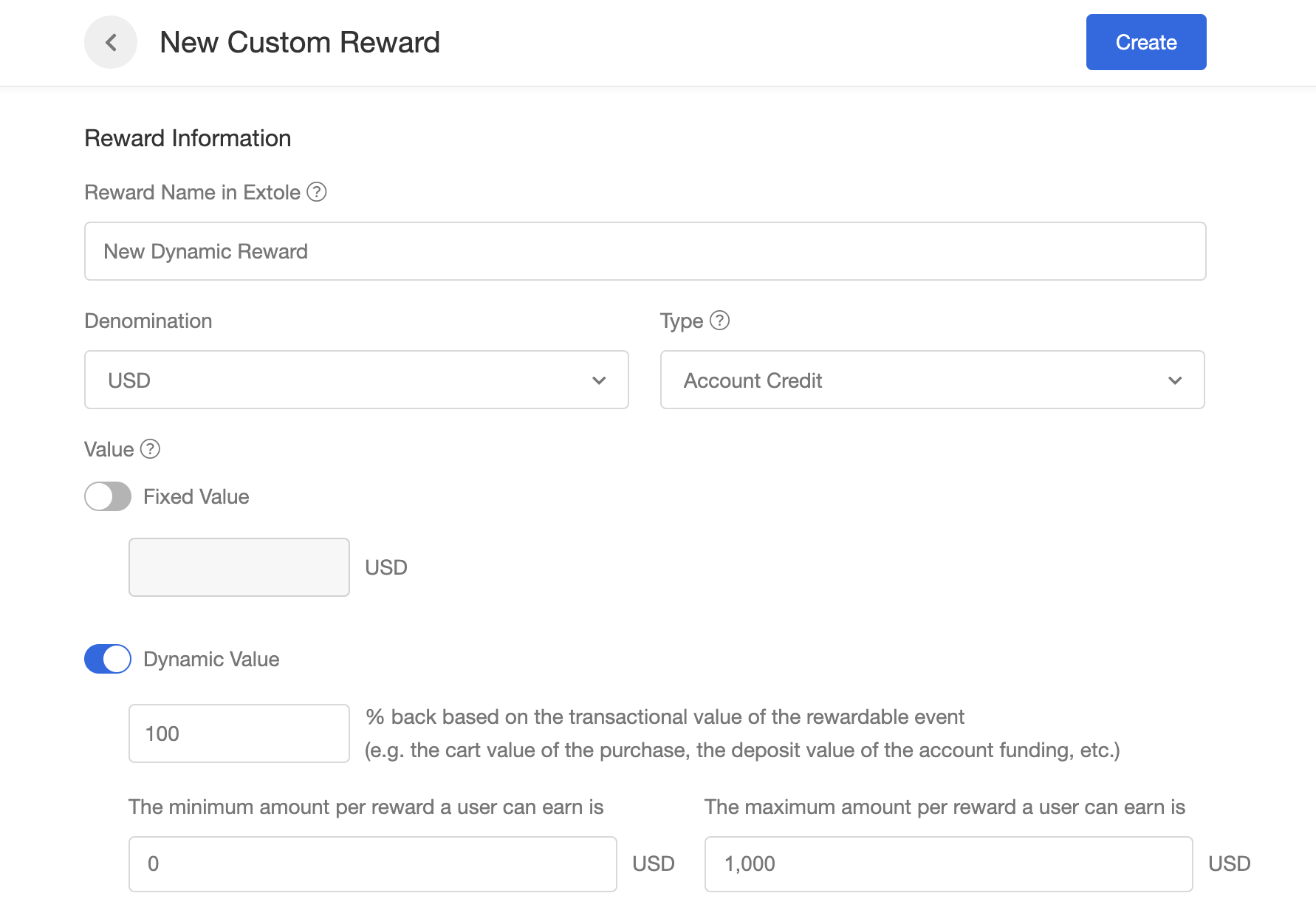
Create new reward suppliers for redemption rewards with a dynamic 100% back value from the Account Rewards page. These rewards will later be used to configure rewards that users can use to redeem the accumulated rewards (see “Select Redemption Options ” section). The “Minimum amount per reward a user can earn” can either be left empty or set to the brand’s minimum requirement (e.g., 2,000 for an Amazon gift card) or the maximum value of rewards that can be redeemed at a time (this setting will be configured later in the Reward Bank extension). -
Install the Reward Bank Extension:
- Navigate to the Partners page > Extensions in your Extole account
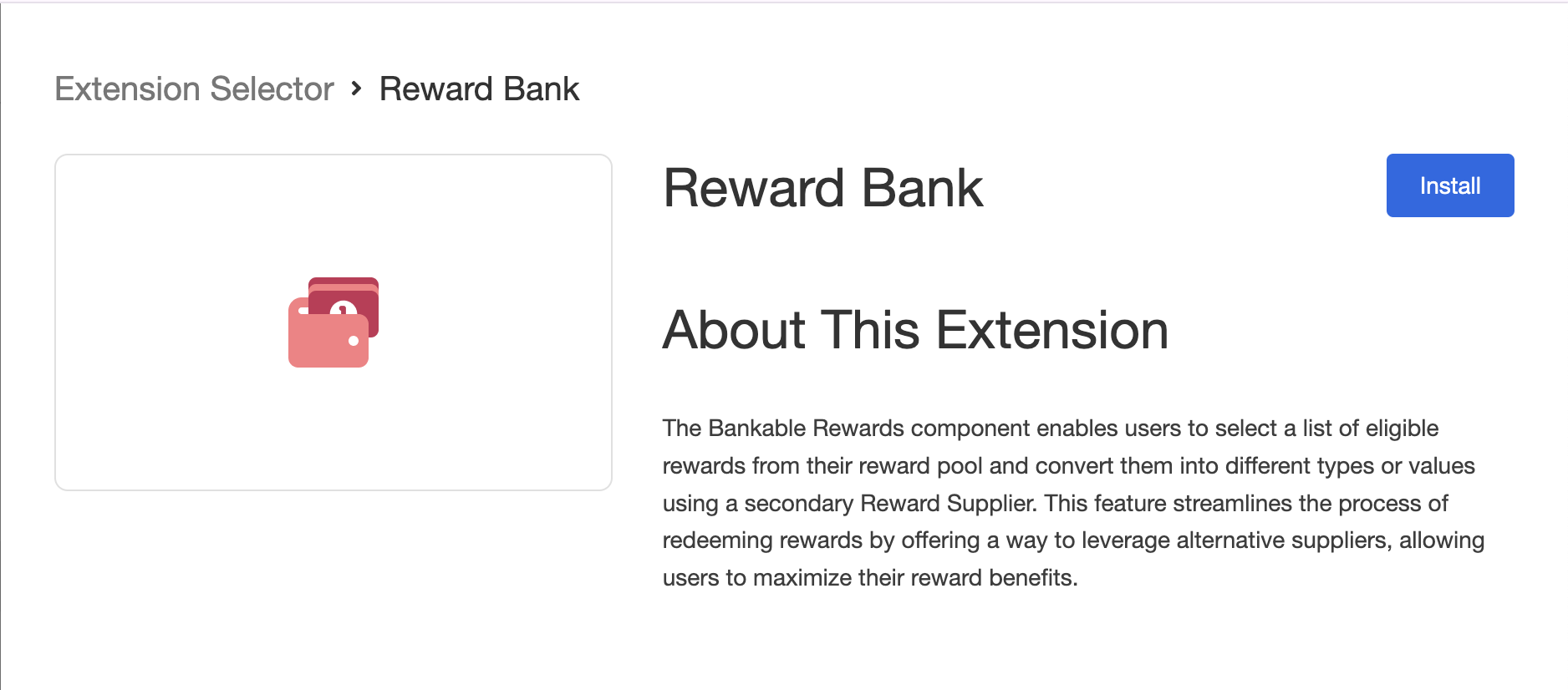
- Locate and install the Reward Bank Extension
-
Add and Configure Collectible Rewards:
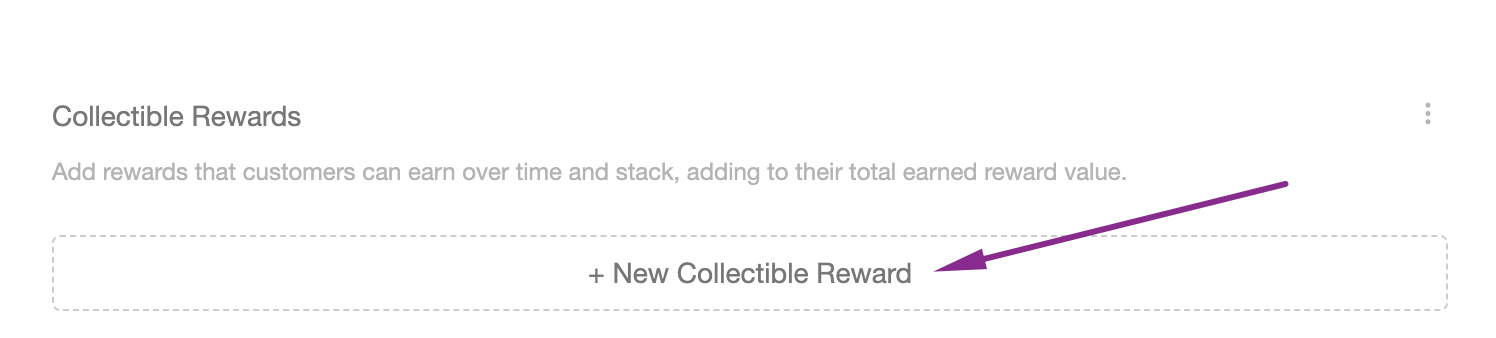
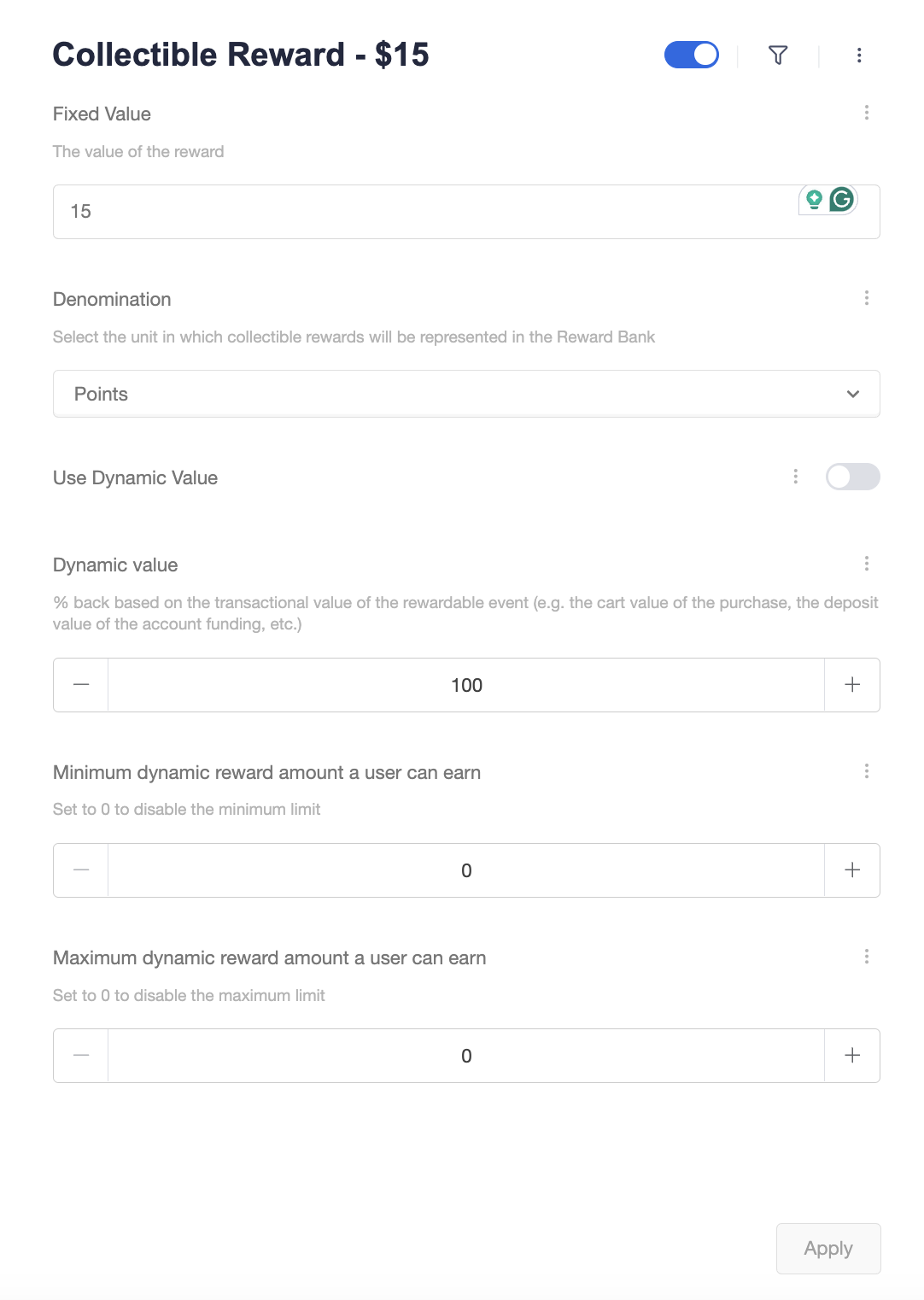
- Click + New Collectible Reward
- Assign a unique name to the reward; Include the reward value to differentiate (e.g., “Collectible Reward $15”)
- Add value and choose the denomination that aligns with your program flow.
- Enable the reward by toggling the “Enable” switch
- Dynamic Value (Optional): Enable the dynamic toggle for percentage-based rewards (e.g., earning a 10% gift card commission on a purchase). Configure the cashback percentage, and set the minimum and maximum dynamic reward amounts that a user can earn per transaction. The reward value will be rounded to two decimal places. Please ensure the maximum is set to a valid amount. The setting is required for dynamic rewards. Set the highest amount a user can earn per transaction, based on your campaign rules or reward type limits.
-
Select Redemption Options:
-
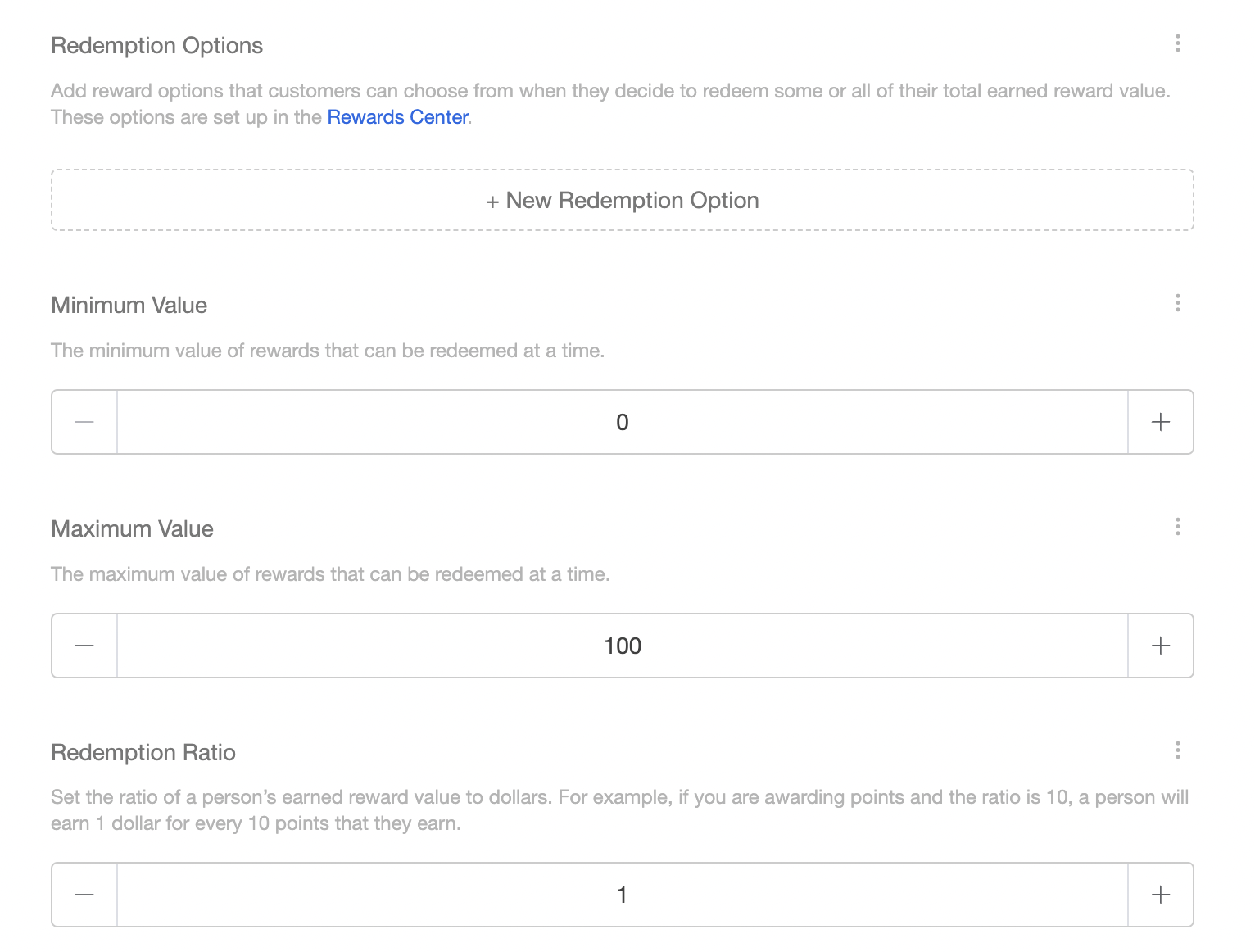
Configure Redemption Parameters:
-
Save Changes:
Scroll to the top and save all configuration modifications\
Customize Reward Bank Creatives
-
Update Redemption Emails:
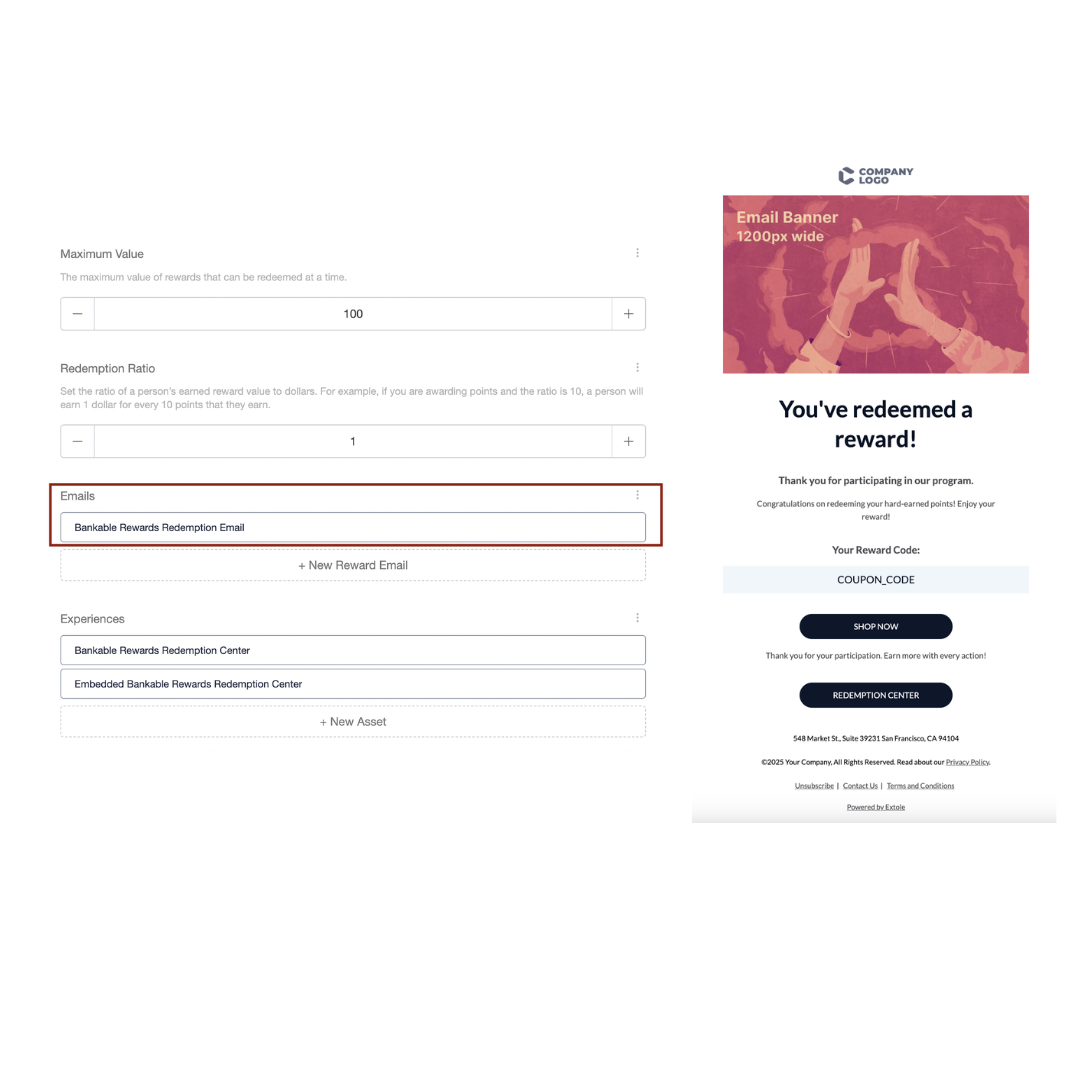
The Bankable Rewards Redemption Email is sent to customers after they redeem a reward—except for cases where our partner handles the email communication. Click to customize the email templates to match your design preferences, then click ‘Apply’ to save your changes.
-
Customize Redemption Center Appearance:
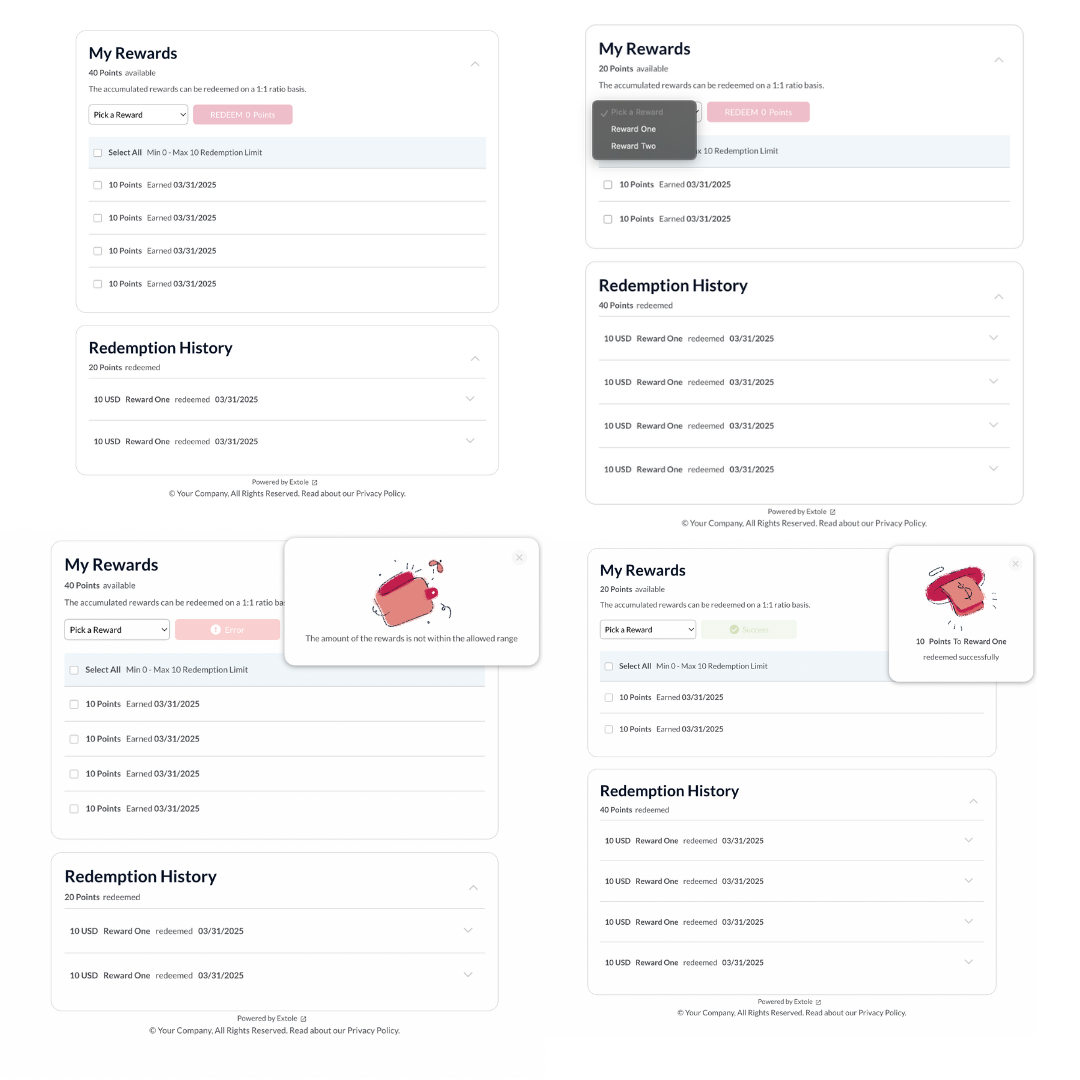
-
Configure Tango Template
- Configure a generic template in the Tango Rewards Genius , or reuse an existing one if it does not contain any hardcoded values.
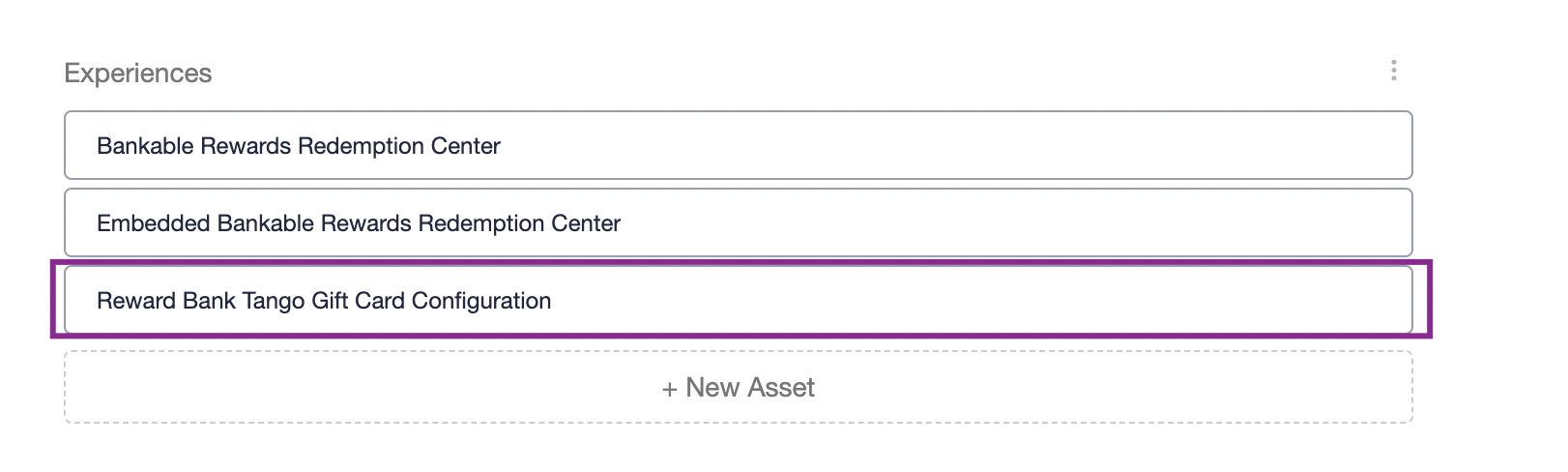
- Click Reward Bank Tango Gift Card Configuration
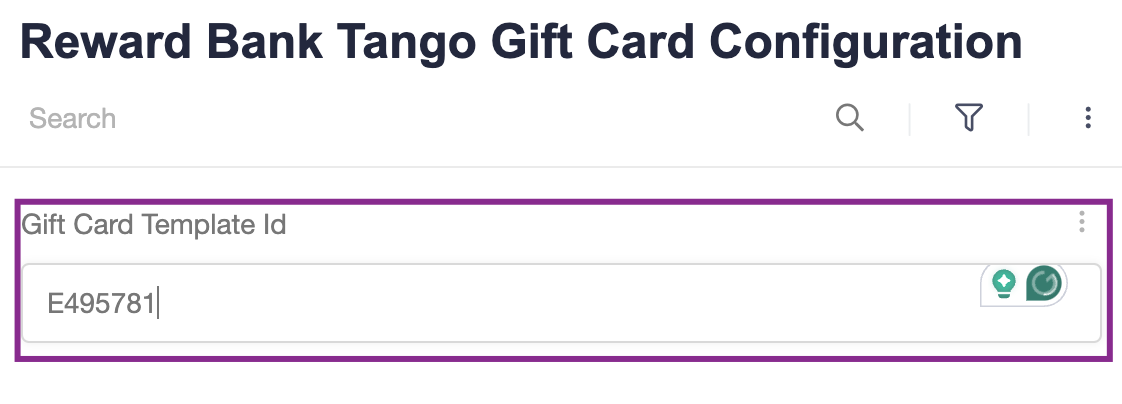
- Add the Gift Card Template ID
-
Hit ‘Apply’ to save your changes.
Update Program
-
Add Collectible Rewards to the Campaign:
-
Update Earned Reward Emails (Optional):
-
Publish the campaign.
Multiple Reward Banks:
For different programs and varying reward types, set up multiple Reward Bank extensions. Give each Reward Bank a unique name to make identification easier. When using multiple integrations, includetarget=campaign_id:<REWARD_BANK_CAMPAIGN_ID> in the links leading to the Reward Bank to ensure correct functionality.
Example link:
https://test.extole.io/zone/bankable_rewards_redemption_center?target=campaign_id:<CAMPAIGN_ID>&jwt=<JWT_TOKEN>
Reporting
Run the following reports to track Reward Bank activity: Reward Bank Redeemed Rewards : Includes the rewards that have been redeemed, along with the associated collectible rewards. Reward Bank Rewards Audit : Provides a detailed log of all collectible Reward Bank rewards, including their current statuses and history. Reward Bank Rewards Summary : Offers an overview of the total reward activity, summarizing key metrics and redemption trends.Access Reward Bank
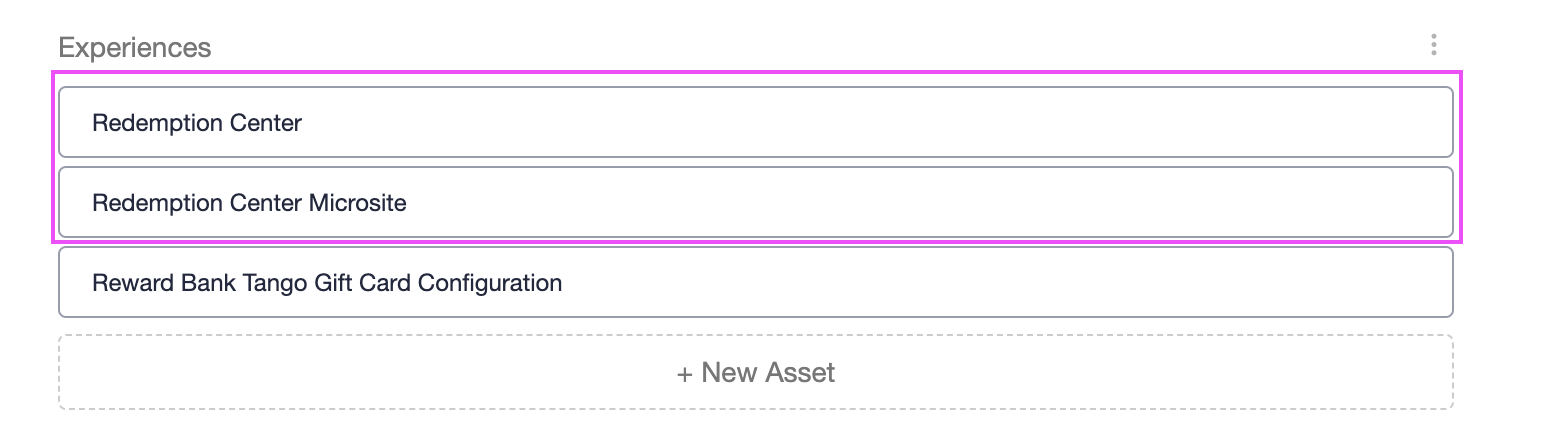
You can provide users access to the Reward Bank either as a standalone page or embedded within your own page:- Recemption Center - embedable version
- Recemption Center Microsite - standalone page
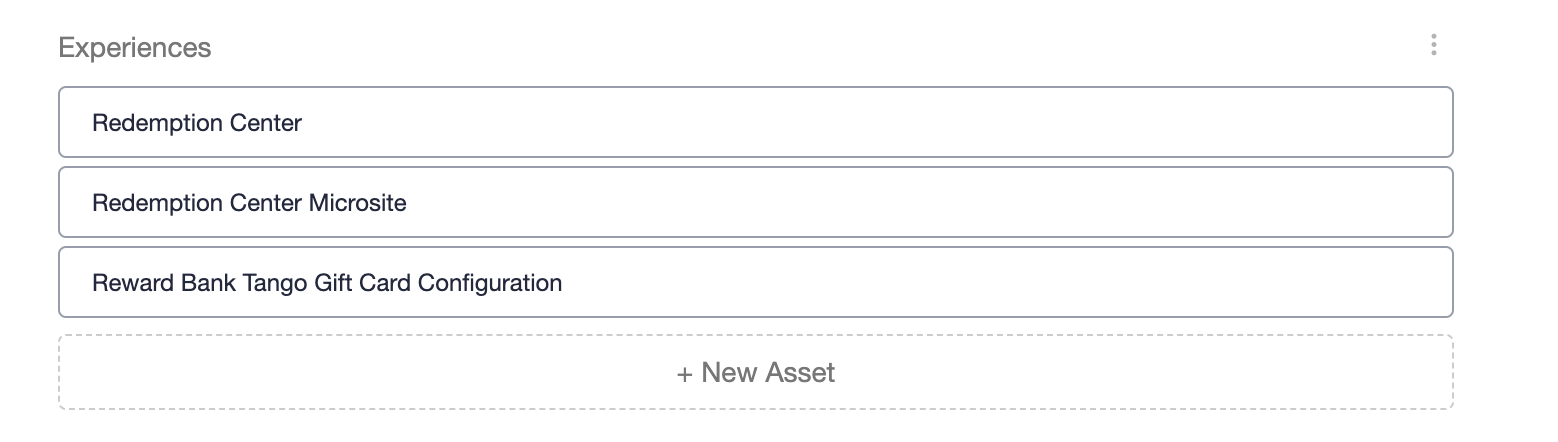 The user must access it as a verified consumer.
In case of emails that leads to standalone page, the verification is handled via a JWT token.
The JWT can be generated within the email creative and appended to the Reward Bank link to authorize the zone call. Example of the link:
The user must access it as a verified consumer.
In case of emails that leads to standalone page, the verification is handled via a JWT token.
The JWT can be generated within the email creative and appended to the Reward Bank link to authorize the zone call. Example of the link: https://<Program_Domain>/zone/redemption_center_microsite?jwt=<JWT_KEY>
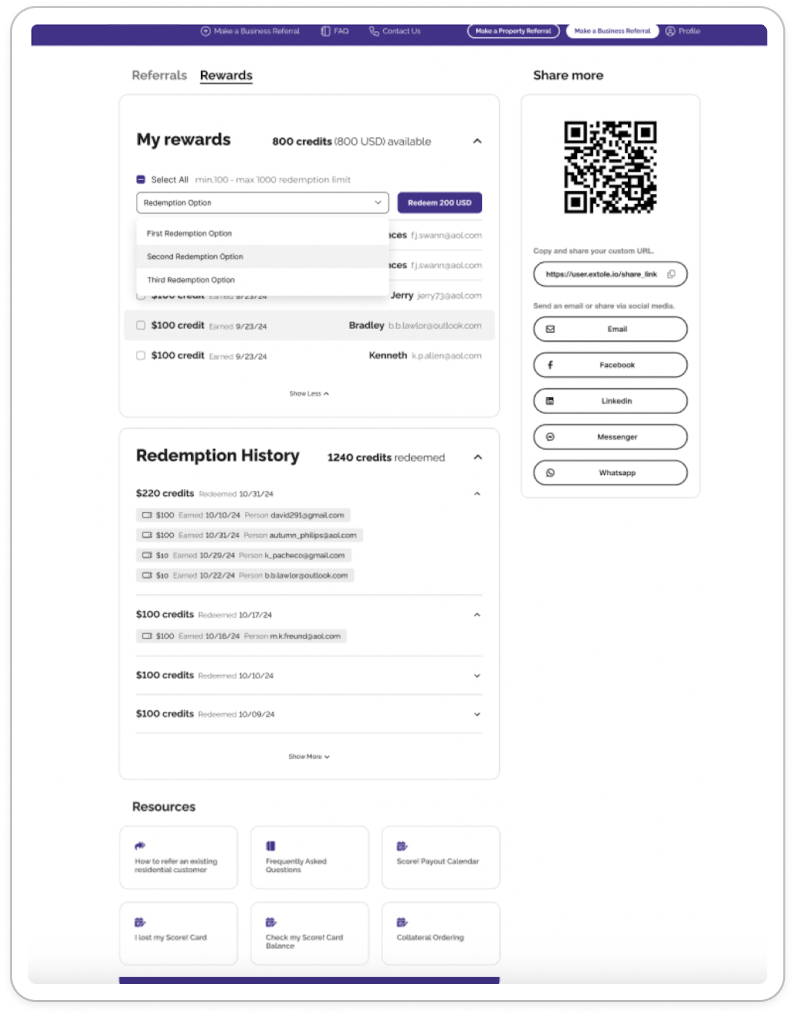
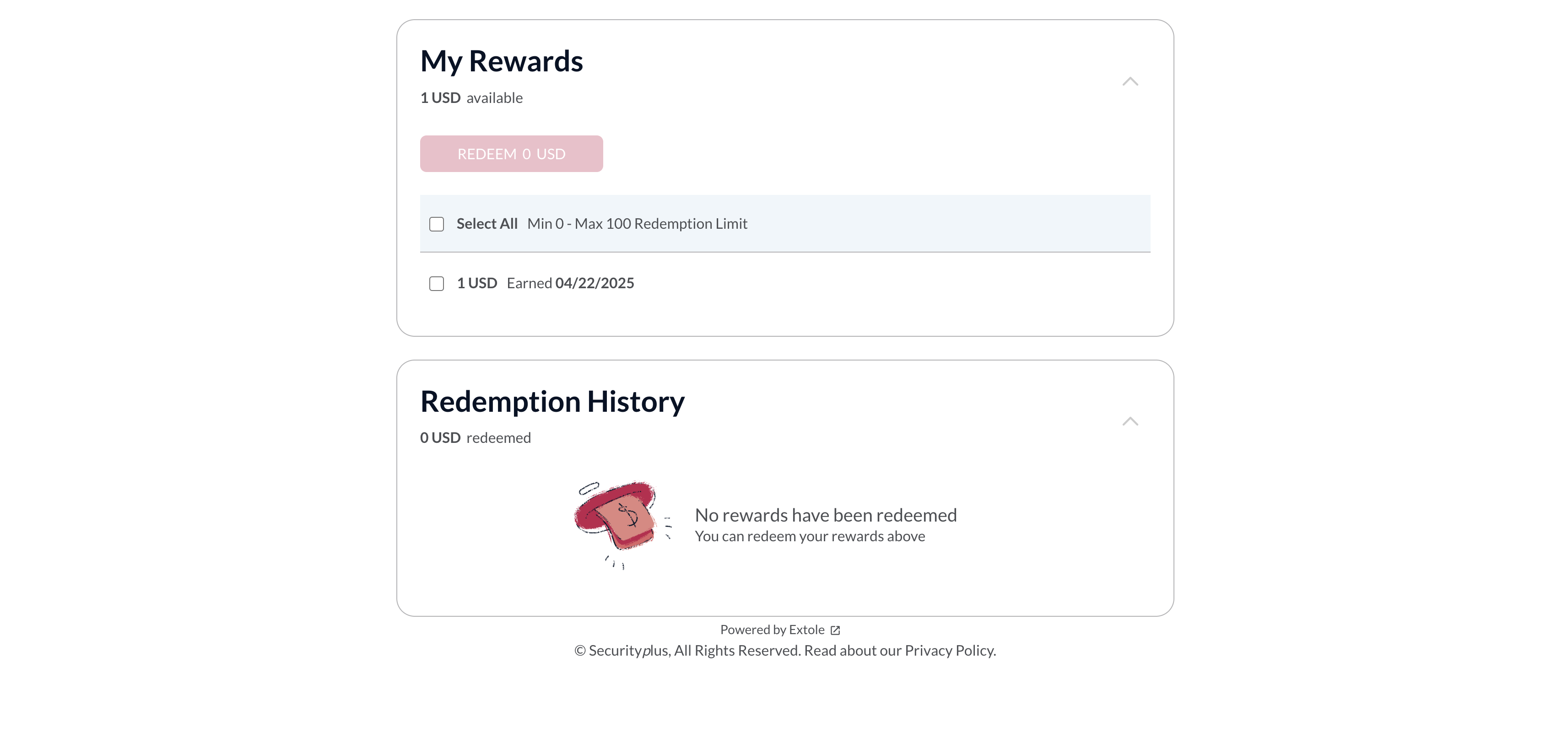
Examples:
Embedded version
 Standalone microsite
Headless Integration
For advanced integration scenarios, use the following Reward Bank API endpoints via the Extole Customer API. To successfully call these endpoints, replace theclient with your program domain. For example, if Test Company were to call this endpoint, the URL would be:https://testcompany.extole.io/zone/bankable_rewards.
You can find your program domain in the Tech Center of the My Extole .
Retrieve Bankable Rewards
A verified JWT or access token is required to retrieve the bankable reward.target=campaign_id:<REWARD_BANK_CAMPAIGN_ID>
Example of Response
https://test.extole.io/zone/bankable_rewards_redemption_center?target=campaign_id:<CAMPAIGN_ID>&jwt=<JWT_TOKEN>
Redeem Bankable Rewards
A verified JWT or access token is required to retrieve the bankable reward.https://<Program_Domain>/zone/redemption_center_microsite?jwt=<JWT_KEY>
Body:
client
Example of Response
https://testcompany.extole.io/zone/bankable_rewards
Appendix:
Tremendous Rewards
- Tremendous rewards require additional customization in the redemption emails (checkout Customize Reward Bank Creatives > Update Redemption Emails section for details). Please submit a request to the Support Team for assistance.
- Additionally, reach out to Support to help update/configure the necessary webhooks for the newly added Tremendous rewards on your account.
Makegood Events Compatibility
The Reward Bank does not support makegood events created from the Create Event page. Alternative Methods for Issuing Additional Rewards:- Use API events
- Use file-based events
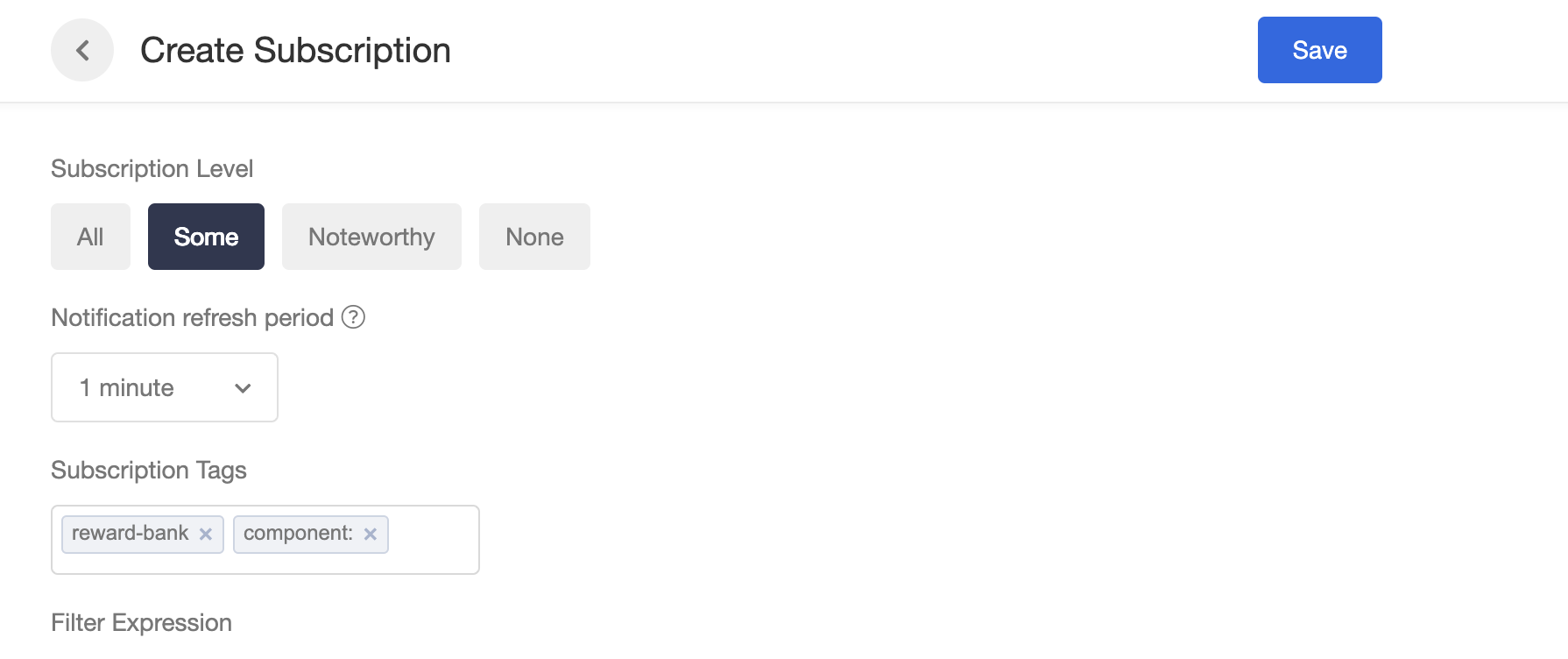
reward-bank
Prehandler JavaScript Action:
component:<reward bank name
Notifications
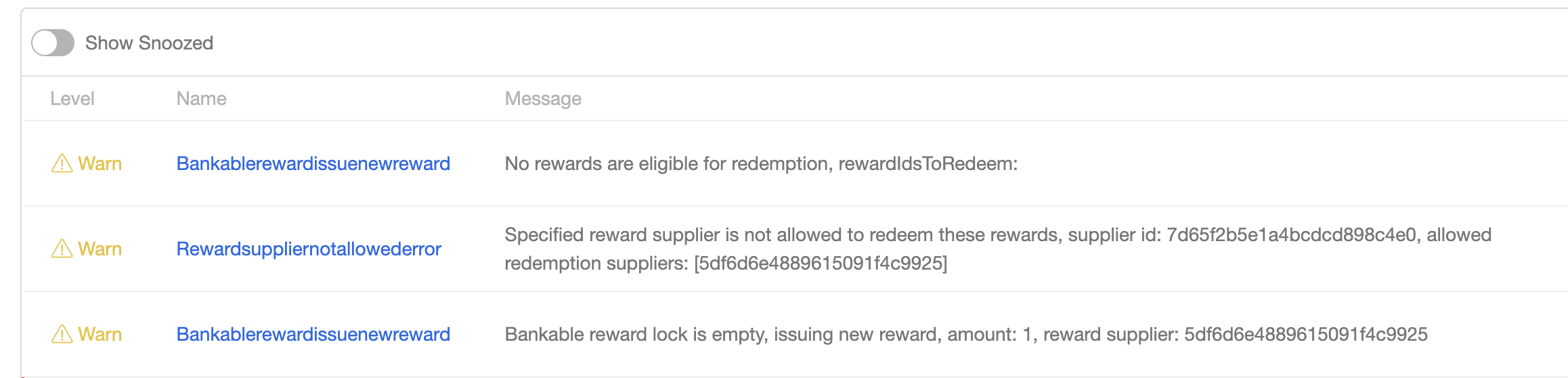
Subscribe to notifications to monitor the redemption process: