
Prerequisites
Integration
- Set-up your Extole campaign
- Add referral tracking to your online and phone lead capture flows
- Use the Extole app to connect to ServiceTitan API’s
- Set-up webhooks to notify Extole of new jobs
- How Extole uses ServiceTitan API’s to verify customer and job status
Step 1: Set-up your Extole campaign
Check your default share messages
On the Overview tab in your Extole campaign, make sure your default share email message and social share description encourages referred prospects to use their referral link or code when scheduling an estimate.UTM_content
Update your friend landing experience
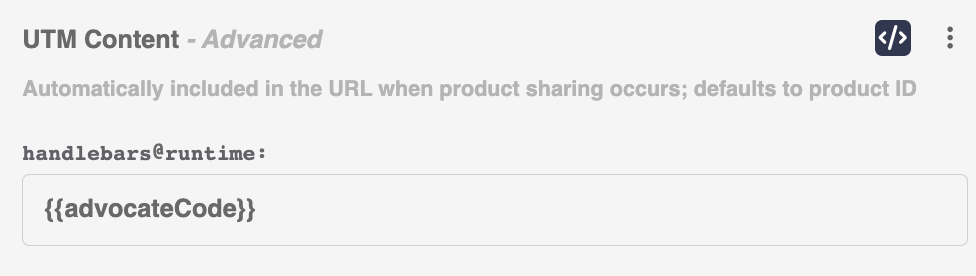
Submit a request to your Extole team to present a copy-able advocate code to referred prospects on your friend landing experience. When a referred prospect clicks on a referral link, Extole will redirect them to your website and serve a pop-up or banner with the advocate’s referral code so that they can copy-paste it into your lead form. If you are able to pre-fill fields onto your lead forms using URL parameters, you can go to the Share Link Behavior step in your Extole campaign, and update theUTM_content variable with the following value:
advocate_code
Step 2: Add referral tracking to your online and phone lead capture flows
Add a referral code field to your online lead form
On your standard lead form, add an optional field called “referral code” where prospects can enter their advocate’s code.Create a custom field on the Service Titan Lead Object
Add a custom field calledadvocate_code to the lead object in ServiceTitan. This field should populate when a prospect provides a referral code (e.g jsmith123) over the phone or adds it to your online lead form. Make sure the advocate_code persist to the jobs object.
Add Extole’s Javascript SDK to your online lead form
<Callout icon=”📘” theme=“info”> Learn more about Extole’s Javascript SDK </Callout> If a prospect forgets to add the referral code to the lead form, or enters in an incorrect code, you can still automatically track referred leads using Extole’s Javascript SDK. First, add Extole’s core tag to all of your pages. You can find your core tag in the Extole platform (Tech Center > Tag Generator.) It will look something like this:jsmith123
Then, fire Extole’s online_lead_captured tag when a user submits a lead form. If the advocate_code parameter is null, Extole will match the referral using theemail that comes in any downstream job events.
online_lead_captured
Step 3: Use the Extole app to connect to ServiceTitan API’s
<Callout icon=”🚧” theme=“warn”> You must have admin access to your ServiceTitan Integration Environment (https://integration.servicetitan.com/) to complete this step. </Callout>Locate your ServiceTitan Tenant ID
Find your Tenant ID in your ServiceTitan Integration Environment under Settings > Integrations > API Application Access. Provide your Tenant ID(s) to your Extole team so that they can enable Extole’s app in your integration environment.Configure your Key(s)
In Service Titan’s Integration Environment- Go back to Settings > Integrations > API Application Access > Extole to locate your
Client IDandClient Secret. Copy these and store them in a safe place.
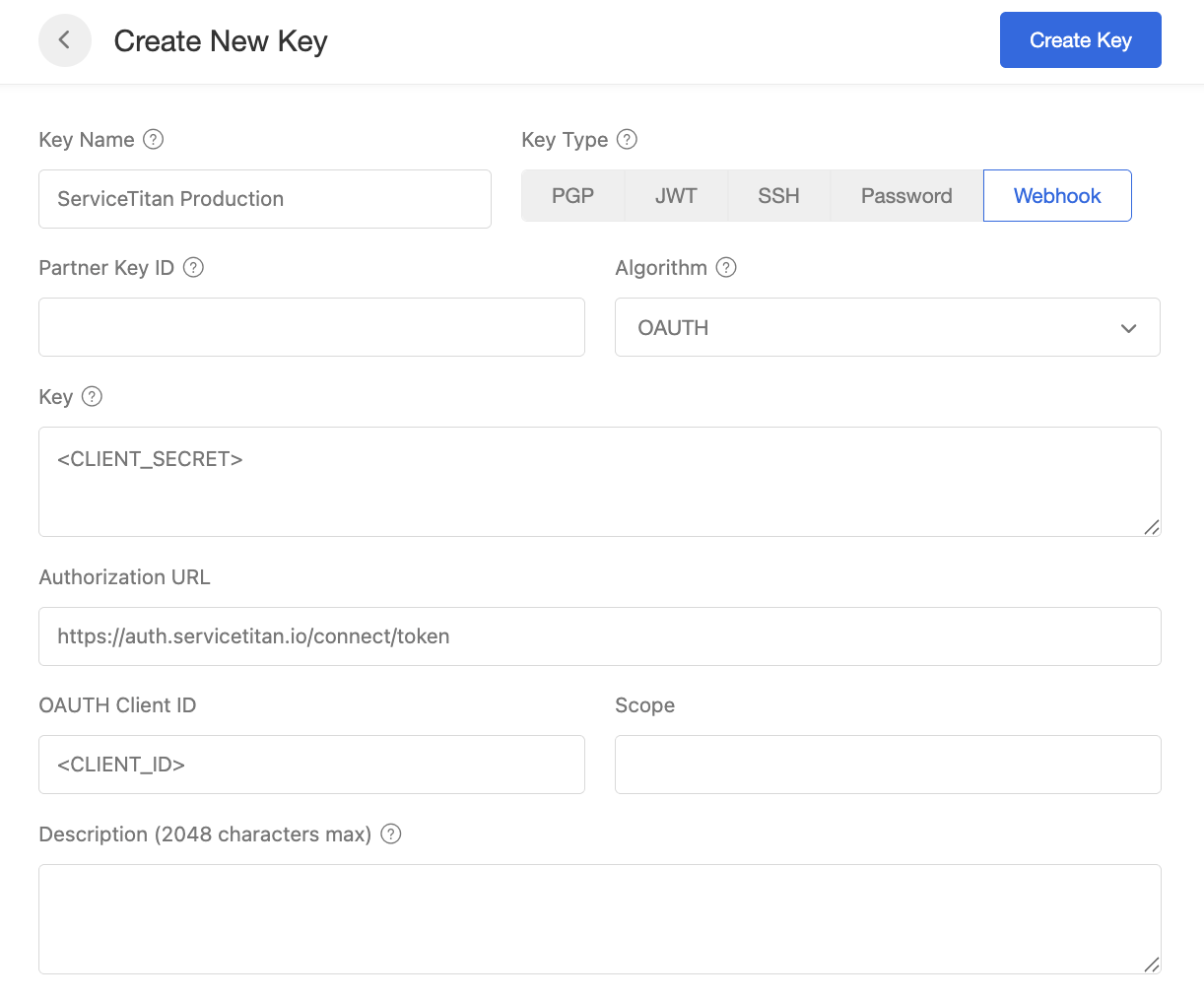
- Select
+ New Key - Select
Webhookas they key type andOAUTHas the algorithm - Take your
Client Secretfrom ServiceTitan and paste it in theKeyfield - Take your
Client IDfrom ServiceTitan and paste it in theOAUTH Client IDfield - Set the ServiceTitan token URL as the
Authorization URL(should look like this https://auth.servicetitan.io/connect/token for production) - Select
Create Keyto save - Repeat this process if you’d like to connect to multiple Service Titan environments (e.g staging and prod)
Step 4: Set-up webhooks to notify Extole of new jobs
Generate an Extole access token to connect to Extole APIs
In Extole’s Security Center- Select
+New Access Tokenand verify your login credentials - Name your Access Token “ServiceTitan”
- Generate your token and copy it in a safe place, as you’ll need it in the next step.
Set up your webhook(s) in Zapier
If you are using Zapier’s Service Titan Integration, create a zap that notify’s Extole’s Events API anytime a newjob_scheduled event occurs.
In your zap:
- Select
POSTas the method - Set
https://api.extole.io/v5/eventsas the URL - Select the option to unflatten the data
- Select
Authorizationas the header and paste your Extole access token from above as the bearer token.
advocate_code
How Extole uses ServiceTitan API’s to verify customer and job status
Customer email look up
Extole will poll ServiceTitan’s Customer_GetContact List API to retrieve the customers email address if it was not available in the initial webhook from Zapier. Sample response body:email
New vs existing customer look up
Extole will poll ServiceTitan’s Jobs_GetList Endpoint to see the number of completed jobs on the customers profile. Sample response body:Client ID
Job status look up
Extole will poll ServiceTitan’s Jobs_Get Endpoint to see the status of the job. Extole will recordjob_completed and job_canceled events on the Extole profile as the job status changes.
Sample response body:
Client Secret