> ## Documentation Index
> Fetch the complete documentation index at: https://doc.extole.com/llms.txt
> Use this file to discover all available pages before exploring further.
# Salesforce Marketing Cloud
> Connect your Extole account to Salesforce Marketing Cloud to push data, typically a marketing email opt-in list. Extole can either push this through the Salesforce MC API or through Salesforce MC File Drop Automation.
## Overview
[//]: # "Does Extole integrate with Salesforce Marketing Cloud Opt-ins?"
In order to send data from your Extole program to your Salesforce Marketing Cloud (SFMC) account, you must use the SFMC Data Extensions API.
[//]: ___
## Prerequisites
[//]: # "What are the requirements for the Extole integration with Salesforce Marketing Cloud Opt-ins?"
### API
| Requirement | Description |
| :--------------------------------- | :------------------------------------------------------------------------------------------------- |
| Salesforce Marketing Cloud Account | A Salesforce Marketing Cloud account is required in order to take advantage of this integration. |
| SFMC Client ID and Client Secret | An SFMC Client ID and Client Secret can be generated in your SFMC account |
| Extole Webhook Key | An Extole key. This can be generated in your My Extole account in the Security Center > + New Key. |
### File Drop
| Requirement | Description |
| :--------------------------------- | :----------------------------------------------------------------------------------------------- |
| Salesforce Marketing Cloud Account | A Salesforce Marketing Cloud account is required in order to take advantage of this integration. |
| Marketing Cloud SFTP Account | A Marketing Cloud SFTP account can be created in your SFMC account. |
[//]: ___
## API Integration
[//]: # "How do I set up an API integration between Extole and Salesforce Marketing Cloud Opt-ins?"
### Generate an SFMC Client ID & Secret
To establishing this connection, log in to your SFMC account and generate a new Client ID and Client Secret for Extole. After generating this information, save it somewhere that is easily accessible for the Extole key creation process.
### Create a New Key in Extole
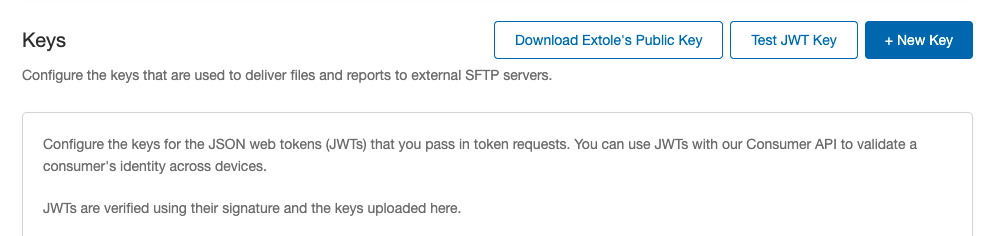
Navigate to your My Extole account and find the Security Center. Here, you can click on the + New Key button to begin the next step.
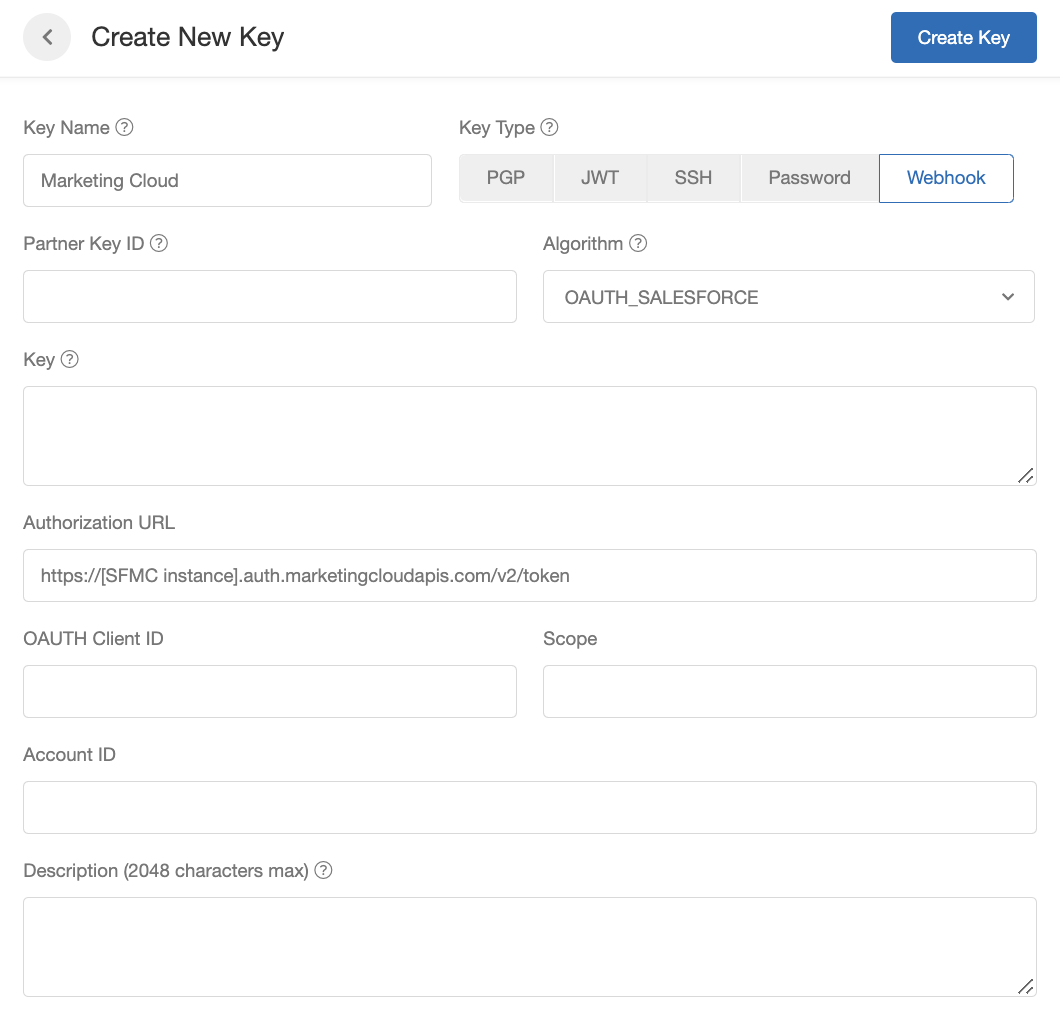
 On the key creation page, fill in the following information:
* Key Name: How you'd like to refer to the key in Extole
* Key Type: Webhook
* Partner Key ID: A value that you will recognize for this credential (e.g., your account ID, email address, or user ID)
* Key Algorithm: OAUTH\_SALESFORCE
* Key: The Client Secret copied from SFMC
* Authorization URL: `https://[SFMC instance].auth.marketingcloudapis.com/v2/token`
* OAUTH Client ID: The Client ID copied from SFMC
On the key creation page, fill in the following information:
* Key Name: How you'd like to refer to the key in Extole
* Key Type: Webhook
* Partner Key ID: A value that you will recognize for this credential (e.g., your account ID, email address, or user ID)
* Key Algorithm: OAUTH\_SALESFORCE
* Key: The Client Secret copied from SFMC
* Authorization URL: `https://[SFMC instance].auth.marketingcloudapis.com/v2/token`
* OAUTH Client ID: The Client ID copied from SFMC
 ### Configure an Extole Webhook
Next, work with your Customer Success or Implementation Manager to configure a webhook in the Tech Center > Outbound Webhooks section. Start by clicking on the + New Webhook button.
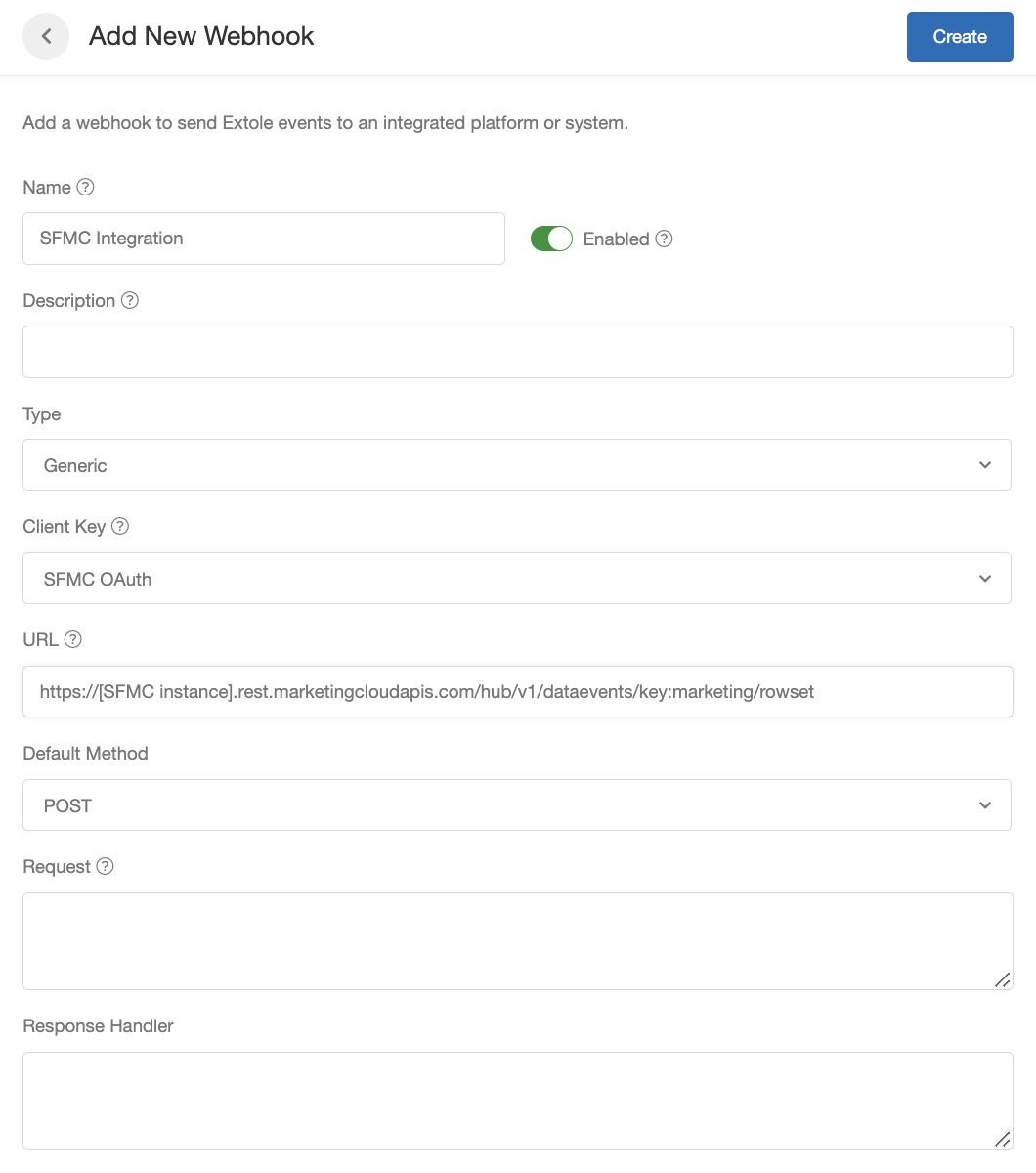
On the webhook creation page, fill in the following information:
* Name: How you'd like to refer to the webhook in Extole
* Enabled: Toggle on (green)
* Type: Generic
* URL: `https://[SFMC instance].rest.marketingcloudapis.com/hub/v1/dataevents/key:marketing/rowset`
### Configure an Extole Webhook
Next, work with your Customer Success or Implementation Manager to configure a webhook in the Tech Center > Outbound Webhooks section. Start by clicking on the + New Webhook button.
On the webhook creation page, fill in the following information:
* Name: How you'd like to refer to the webhook in Extole
* Enabled: Toggle on (green)
* Type: Generic
* URL: `https://[SFMC instance].rest.marketingcloudapis.com/hub/v1/dataevents/key:marketing/rowset`
 Extole Support will then configure the opt-in event to send into the SFMC Webhook. The default JSON looks like the following, but can be updated by Extole Support:
`https://[SFMC instance].auth.marketingcloudapis.com/v2/token`
[//]: ___
## File Drop Integration
[//]: # "How do I set up an File Drop integration between Extole and Salesforce Marketing Cloud Opt-ins?"
If connection via API is unavailable to you, you will need to create a new Marketing Cloud SFTP account in SFMC that can be used to access the Marketing Cloud SFTP for File Drop Automations.
### Create an External SFTP in Extole
Once you've created your new SFTP account in SFMC, navigate to the My Extole [Tech Center](https://my.extole.com/tech-center). Here, select External SFTP Server and click on the + New Server button.
Extole Support will then configure the opt-in event to send into the SFMC Webhook. The default JSON looks like the following, but can be updated by Extole Support:
`https://[SFMC instance].auth.marketingcloudapis.com/v2/token`
[//]: ___
## File Drop Integration
[//]: # "How do I set up an File Drop integration between Extole and Salesforce Marketing Cloud Opt-ins?"
If connection via API is unavailable to you, you will need to create a new Marketing Cloud SFTP account in SFMC that can be used to access the Marketing Cloud SFTP for File Drop Automations.
### Create an External SFTP in Extole
Once you've created your new SFTP account in SFMC, navigate to the My Extole [Tech Center](https://my.extole.com/tech-center). Here, select External SFTP Server and click on the + New Server button.
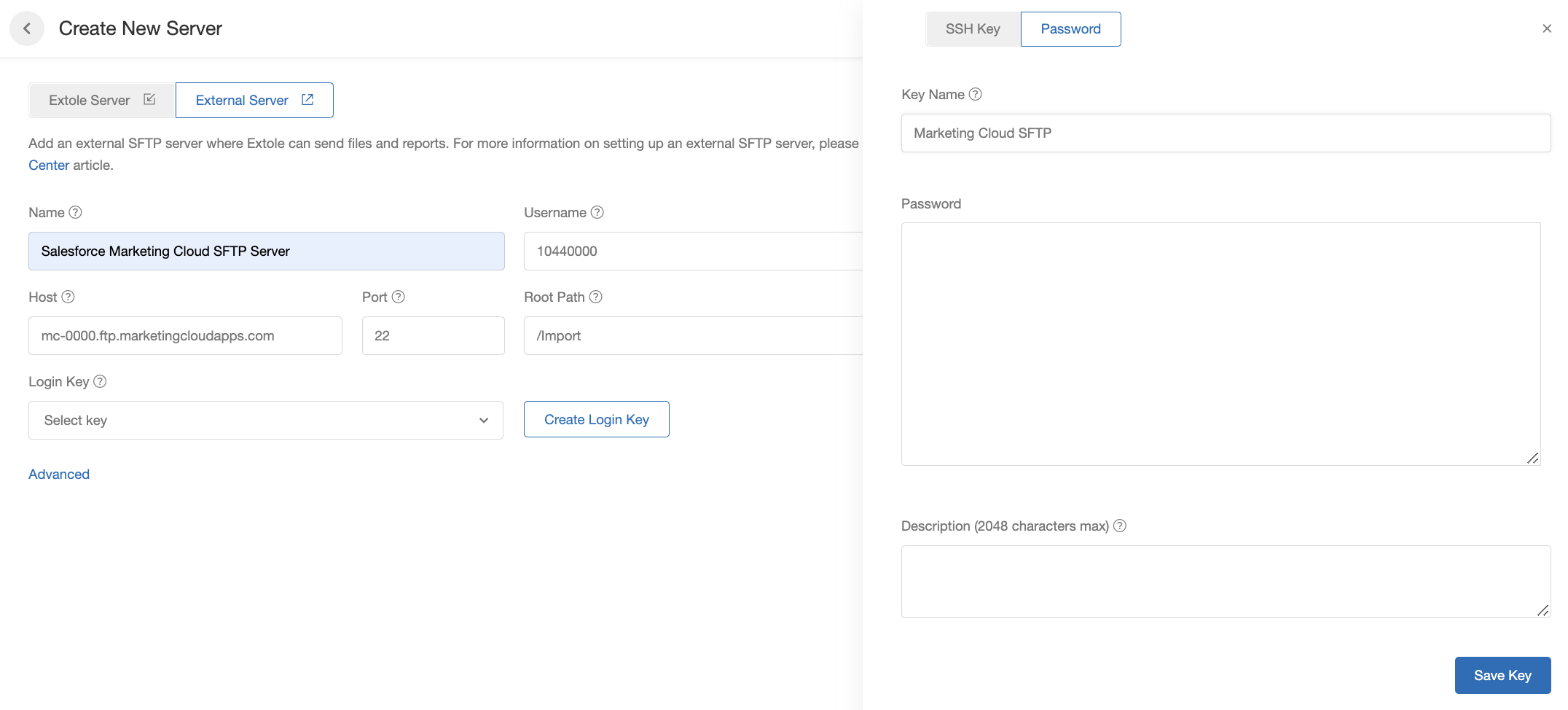
 Once you're on the server creation page, fill in the following information:
* Name: How you'd like to refer to the server in My Extole
* Username: The username used to access the SFTP server
* Host: `mc-0000.ftp.marketingcloudapps.com`
* Port: 22
* Root Path: /Import
Click on the Create Login Key button and select the Password option. Name the key whatever you would like and enter in the password you created in Marketing Cloud. Save the key and then save your new server.
Once you're on the server creation page, fill in the following information:
* Name: How you'd like to refer to the server in My Extole
* Username: The username used to access the SFTP server
* Host: `mc-0000.ftp.marketingcloudapps.com`
* Port: 22
* Root Path: /Import
Click on the Create Login Key button and select the Password option. Name the key whatever you would like and enter in the password you created in Marketing Cloud. Save the key and then save your new server.
 ### Send Reports to SFMC via SFTP
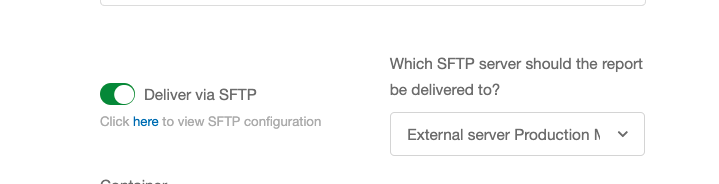
Once configured, any report generated in your Extole account can be scheduled to automatically push to the Salesforce Marketing Cloud SFTP.
### Send Reports to SFMC via SFTP
Once configured, any report generated in your Extole account can be scheduled to automatically push to the Salesforce Marketing Cloud SFTP.
 [//]: ___