> ## Documentation Index
> Fetch the complete documentation index at: https://doc.extole.com/llms.txt
> Use this file to discover all available pages before exploring further.
# Adobe Marketo Engage
> Send data from your Extole Lead Generation or B2B program directly to the Marketo Lead API.
## Overview
[//]: # "Does Extole integrate with Adobe Marketo Engage?"
Adobe Marketo Engage makes the complex buyer journey simple. Send your Extole program data into your Marketo account to improve your advocacy and experiences to keep customers engaged.
[//]: ___
## Prerequisites
[//]: # "What are the requirements for the Extole integration with Adobe Marketo Engage?"
| Requirement | Description |
| :---------------------------------- | :------------------------------------------------------------------------------------------------- |
| Marketo Account | An Adobe Marketo Engage account is required in order to take advantage of this integration. |
| Marketo Client ID and Client Secret | A Marketo access token can be created in your Marketo account in the Admin > LaunchPoint menu. |
| Extole Webhook Key | An Extole key. This can be generated in your My Extole account in the Security Center > + New Key. |
[//]: ___
## Integration
[//]: # "How do I set up the Extole integration with Adobe Marketo Engage?"
### Create an Access Token in Marketo
You can see Marketo Documentation here: [https://developers.marketo.com/rest-api/authentication/#creating\_an\_access\_token](https://developers.marketo.com/rest-api/authentication/#creating_an_access_token)
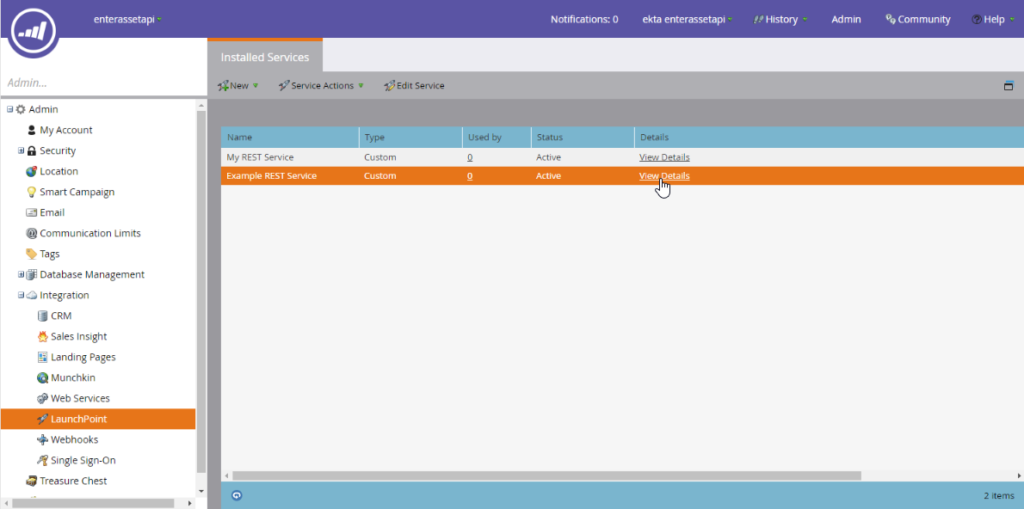
The Client ID and Client Secret are found in the Admin > LaunchPoint menu by selecting the custom service option, and clicking View Details. A new custom service can be created for Extole Leads.
### Create a New Key in Extole
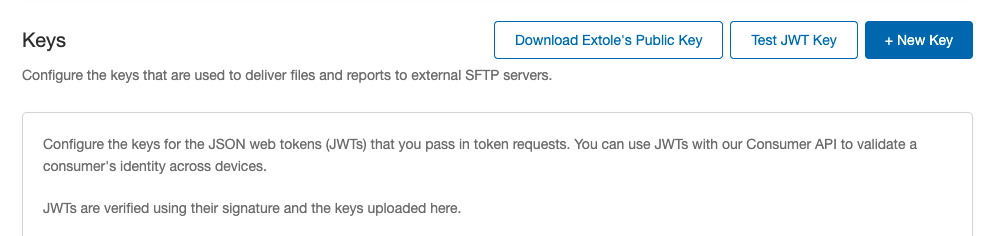
After generating your new key, save it and navigate to the My Extole [Security Center](https://my.extole.com/security-center). Click the + New Key button.
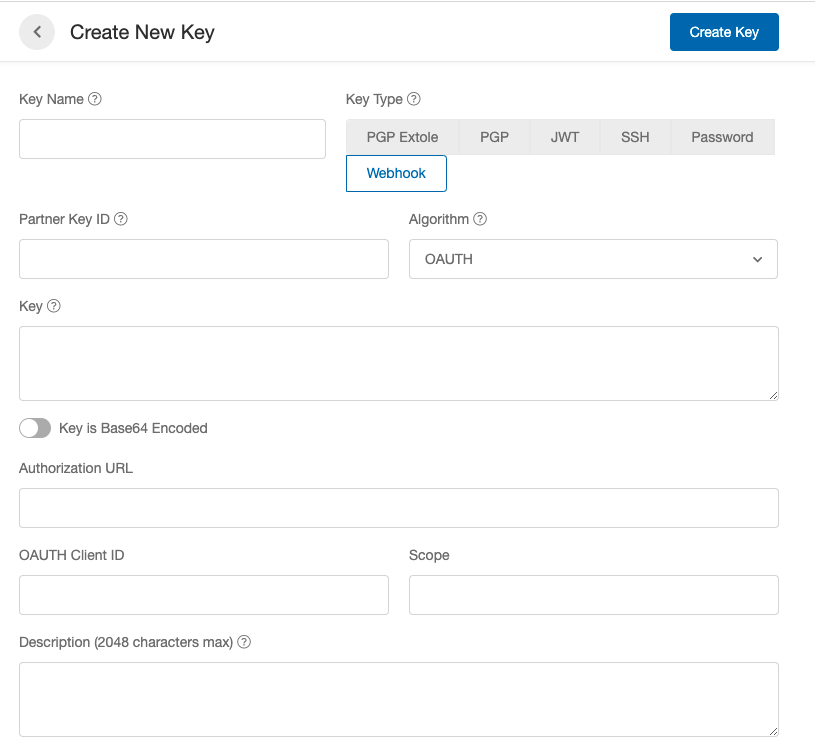
 When creating the new key, fill in the following information:
1. Key Name: How we will refer to the key in My Extole
2. Key Type: Webhook
3. Algorithm: OAUTH
4. Key: The new key you saved from Marketo
5. Authorization URL: ``
6. OAUTH Client ID: Your Marketo Client ID
When creating the new key, fill in the following information:
1. Key Name: How we will refer to the key in My Extole
2. Key Type: Webhook
3. Algorithm: OAUTH
4. Key: The new key you saved from Marketo
5. Authorization URL: ``
6. OAUTH Client ID: Your Marketo Client ID
 ### Configure your Extole Webhook
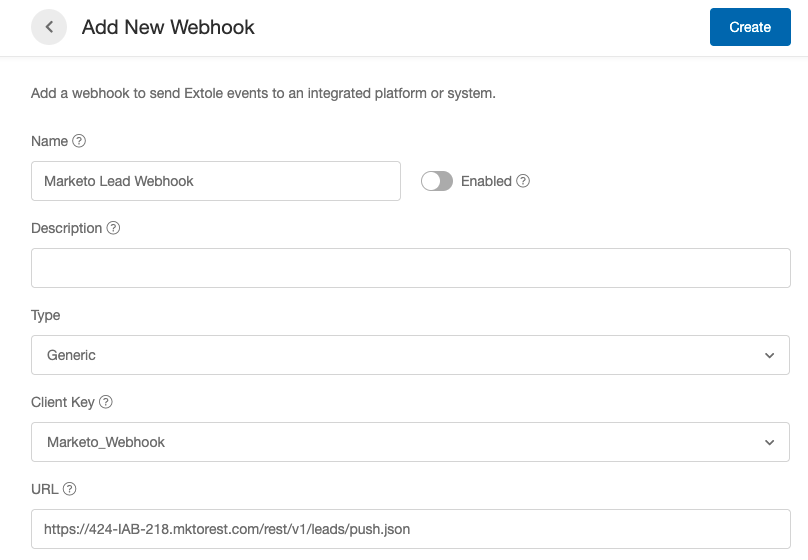
Next you will need to set up a webhook in My Extole. Navigate to the Technical Center > Outbound Webhooks section to begin.
You can name and describe the key however you'd like. Select the Type as Generic and choose the key you created as the Client Key.
Paste in the URL: ``
### Configure your Extole Webhook
Next you will need to set up a webhook in My Extole. Navigate to the Technical Center > Outbound Webhooks section to begin.
You can name and describe the key however you'd like. Select the Type as Generic and choose the key you created as the Client Key.
Paste in the URL: ``
 Extole Support will then configure the lead submitted event to send into the Marketo Lead Webhook. The default JSON looks like the following, but can be updated by Extole Support:
``
[//]: ___
Extole Support will then configure the lead submitted event to send into the Marketo Lead Webhook. The default JSON looks like the following, but can be updated by Extole Support:
``
[//]: ___