| Requirement | Description |
|---|---|
| Hubspot Bearer Token | A server-side API key to make requests to Hubspot's Contacts API. You can generate your Bearer Token in your Hubspot Developer account by creating a [private app](https://developers.hubspot.com/docs/guides/apps/private-apps/overview) with a `crm.objects.contacts.write `scope enabled. |
| Extole Account | An Extole account is required in order to leverage this integration. |
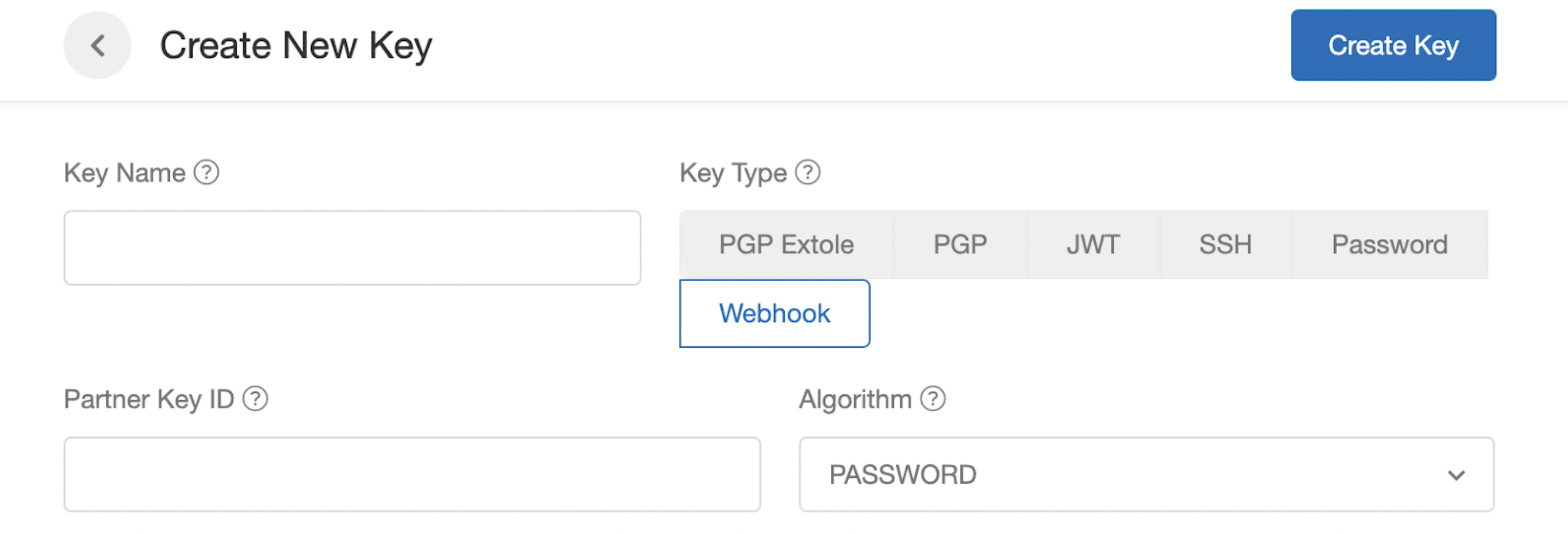 ### Create a Webhook
1. In your Extole account, navigate to [Tech Center > Outbound Webhooks](https://my.extole.com/tech-center/outbound-webhooks).
2. Hit the + New Webhook button.
3. Enter a name and description for the webhook.
4. Select Generic as the webhook **Type**
5. Select the API key that you created as the Client Key
6. Paste `api.hubapi.com/crm/v3/objects/contacts` as the API URL
7. Select **POST** as the default method
8. Reach out to your Extole Customer Success or Launch Manager so that they can add the webhook to the `created_share_link` controller in your Extole campaign.
9. Once the webhook has been added to your Extole campaign, navigate to the Extole Tech Center > Outbound Webhooks and click on the webhook to make sure that share links and codes are flowing into Hubspot. A typical request body should look something like this with a 201 response.
`crm.objects.contacts.write `
You're all set! Make sure you have your Hubspot account configured to capture and populate records with any custom Extole properties (`share_link` and `share_code`.) From there you will be able to dynamically populate a customers share link in your Hubspot Flows and Campaigns.
### Create Share Links for Existing Customers via a One-Time File Upload
To ensure that all of your customers have a share link on their Hubspot contact record, you can export a list of customer emails from Hubspot and securely upload them to Extole’s Batch Jobs center. From there, you'll be able to generate share links and codes and export them using the Extole platform. Learn more about [Extole's file formatting standards](https://docs.extole.com/docs/file-based-events) and [uploading files](https://docs.extole.com/docs/general-file-uploads) to Extole.
## Automatically track referrals when referred prospects complete a Hubspot form or provide their referral code over the phone
Integrate your referral program seamlessly into your existing HubSpot lead capture process. When a referred prospect submits a lead form with their share link, code, or provides it to a sales rep over the phone, Extole automatically tracks and scores the referral in real-time. This automation eliminates the need for manual tracking, saving you time while ensuring a consistent, smooth experience for your customers across all channels.
### Add Extole's Core and Event Tag onto your Hubspot Forms
We suggest adding Extole's Core and Event Tags to your lead forms to automatically track referred leads when a prospect clicks on a share link. By adding Extole Javascript tags, you'll still be able to automatically track and attribute the referral even if the prospect doesn't provide their referral code. For details, refer to[ Extole's JavaScript SDK documentation](https://docs.extole.com/docs/javascript-sdk#add-event-tags).
### Add a Custom Field to your Hubspot Forms to Capture Share Codes
1. You can also add a custom field to your Hubspot contact record and lead forms to capture a customers share code. Set the internal value of this custom field as `advocate_code`. This field can be manually populated by the referred prospect on your lead form, or can be added to the customer contact record through Hubspot admin by an internal sales or customer service representative. Refer to [Hubspot's documentation](https://knowledge.hubspot.com/forms/edit-your-form-fields) for additional information on how to set up custom fields.
2. To automatically pre-fill the form field for any customers who explicitly click on a share link, Extole can pass the users `advocate_code` in the query string so that Hubspot can auto-populate. Refer to [Hubspot's documentation](https://knowledge.hubspot.com/forms/can-i-auto-populate-form-fields-through-a-query-string) for additional information on how to auto-populate form fields using query string parameters.
### Create a Webhook using Hubspot Workflows
Create a webhook using Hubspot workflows to notify Extole every time a referred prospect completes a Hubspot form with an `advocate_code`, or the `advocate_code` is populated on a customer record. Refer to [Hubspot's documentation](https://knowledge.hubspot.com/workflows/how-do-i-use-webhooks-with-hubspot-workflows) for additional information on how to set up Webhooks.
1. First, in your Hubspot account, create a workflow that triggers a webhook notification every time a user completes a Hubspot form and the `advocate_code` field has been filled out OR the `advocate_code` field has been populated on a customer record.
2. Create a webhook in your workflow, and select the webhook method as **POST**.
3. Enter `api.extole.io/v5/events` as the Webhook URL.
4. Select **API Key** as the Authentication method.
5. Log into the Extole platform and navigate to the Security Center. Select **Create a new Access Token**, name the token **Hubspot**, and select **Create**.
6. Paste your Token as the API Key in your Hubspot webhook.
7. In your Hubspot Webhook, select the option to **Customize the Request Body** and enter the following Key-property value pairs.
| Key | Property | Description |
| :---------------- | :---------------------- | :--------------------------------------------------------------------------------------------------------------- |
| email | email | A dynamic property that sends the email address of the user who completed the workflow. |
| advocate\_code | advocate\_code | A dynamic property that sends the advocate code associated with the user who completed the workflow. |
| first\_name | first\_name | A dynamic property that sends the first name of the user who completed the workflow. |
| last\_name | last\_name | A dynamic property that sends the last name of the user who completed the workflow. |
| date | event\_date | A dynamic property that sends the date that the user (in **ISO 8601** format) entered the workflow. |
| id | partner\_conversion\_id | A dynamic property that sends a unique identifier each time a user enters the workflow. Used for de-duplication. |
| company | company | A dynamic property that sends the company name associated with the contact who completed the workflow. |
| event\_name | signed\_up | A **static** value of the event or action the user took to enter the workflow. |
| extole\_app\_type | hubspot | A **static** value. Used for reporting. |
The request body should look like this:
`converted`
### Send Hubspot data as events to Extole to score and reward referrals
You can use **Hubspot Workflows: Webhooks** to send additional events to Extole for scoring and rewarding referrals. For example, let's say you'd like to reward advocates when their referred friends sign a deal for a specific product. As long as the deal was more than \$10,000 in revenue, the advocate should receive a reward. You can simply repeat the steps in [Create a webhook using Hubspot Workflows](https://docs.extole.com/docs/hubspot#create-a-webhook-using-hubspot-workflows) and change the event name to `converted`and add an additional key for `product`and `amount` to pass the product name and deal amount. From there a rule can be created in your Extole campaign to automatically reward the advocate once those criteria have been met.
### Create a Webhook
1. In your Extole account, navigate to [Tech Center > Outbound Webhooks](https://my.extole.com/tech-center/outbound-webhooks).
2. Hit the + New Webhook button.
3. Enter a name and description for the webhook.
4. Select Generic as the webhook **Type**
5. Select the API key that you created as the Client Key
6. Paste `api.hubapi.com/crm/v3/objects/contacts` as the API URL
7. Select **POST** as the default method
8. Reach out to your Extole Customer Success or Launch Manager so that they can add the webhook to the `created_share_link` controller in your Extole campaign.
9. Once the webhook has been added to your Extole campaign, navigate to the Extole Tech Center > Outbound Webhooks and click on the webhook to make sure that share links and codes are flowing into Hubspot. A typical request body should look something like this with a 201 response.
`crm.objects.contacts.write `
You're all set! Make sure you have your Hubspot account configured to capture and populate records with any custom Extole properties (`share_link` and `share_code`.) From there you will be able to dynamically populate a customers share link in your Hubspot Flows and Campaigns.
### Create Share Links for Existing Customers via a One-Time File Upload
To ensure that all of your customers have a share link on their Hubspot contact record, you can export a list of customer emails from Hubspot and securely upload them to Extole’s Batch Jobs center. From there, you'll be able to generate share links and codes and export them using the Extole platform. Learn more about [Extole's file formatting standards](https://docs.extole.com/docs/file-based-events) and [uploading files](https://docs.extole.com/docs/general-file-uploads) to Extole.
## Automatically track referrals when referred prospects complete a Hubspot form or provide their referral code over the phone
Integrate your referral program seamlessly into your existing HubSpot lead capture process. When a referred prospect submits a lead form with their share link, code, or provides it to a sales rep over the phone, Extole automatically tracks and scores the referral in real-time. This automation eliminates the need for manual tracking, saving you time while ensuring a consistent, smooth experience for your customers across all channels.
### Add Extole's Core and Event Tag onto your Hubspot Forms
We suggest adding Extole's Core and Event Tags to your lead forms to automatically track referred leads when a prospect clicks on a share link. By adding Extole Javascript tags, you'll still be able to automatically track and attribute the referral even if the prospect doesn't provide their referral code. For details, refer to[ Extole's JavaScript SDK documentation](https://docs.extole.com/docs/javascript-sdk#add-event-tags).
### Add a Custom Field to your Hubspot Forms to Capture Share Codes
1. You can also add a custom field to your Hubspot contact record and lead forms to capture a customers share code. Set the internal value of this custom field as `advocate_code`. This field can be manually populated by the referred prospect on your lead form, or can be added to the customer contact record through Hubspot admin by an internal sales or customer service representative. Refer to [Hubspot's documentation](https://knowledge.hubspot.com/forms/edit-your-form-fields) for additional information on how to set up custom fields.
2. To automatically pre-fill the form field for any customers who explicitly click on a share link, Extole can pass the users `advocate_code` in the query string so that Hubspot can auto-populate. Refer to [Hubspot's documentation](https://knowledge.hubspot.com/forms/can-i-auto-populate-form-fields-through-a-query-string) for additional information on how to auto-populate form fields using query string parameters.
### Create a Webhook using Hubspot Workflows
Create a webhook using Hubspot workflows to notify Extole every time a referred prospect completes a Hubspot form with an `advocate_code`, or the `advocate_code` is populated on a customer record. Refer to [Hubspot's documentation](https://knowledge.hubspot.com/workflows/how-do-i-use-webhooks-with-hubspot-workflows) for additional information on how to set up Webhooks.
1. First, in your Hubspot account, create a workflow that triggers a webhook notification every time a user completes a Hubspot form and the `advocate_code` field has been filled out OR the `advocate_code` field has been populated on a customer record.
2. Create a webhook in your workflow, and select the webhook method as **POST**.
3. Enter `api.extole.io/v5/events` as the Webhook URL.
4. Select **API Key** as the Authentication method.
5. Log into the Extole platform and navigate to the Security Center. Select **Create a new Access Token**, name the token **Hubspot**, and select **Create**.
6. Paste your Token as the API Key in your Hubspot webhook.
7. In your Hubspot Webhook, select the option to **Customize the Request Body** and enter the following Key-property value pairs.
| Key | Property | Description |
| :---------------- | :---------------------- | :--------------------------------------------------------------------------------------------------------------- |
| email | email | A dynamic property that sends the email address of the user who completed the workflow. |
| advocate\_code | advocate\_code | A dynamic property that sends the advocate code associated with the user who completed the workflow. |
| first\_name | first\_name | A dynamic property that sends the first name of the user who completed the workflow. |
| last\_name | last\_name | A dynamic property that sends the last name of the user who completed the workflow. |
| date | event\_date | A dynamic property that sends the date that the user (in **ISO 8601** format) entered the workflow. |
| id | partner\_conversion\_id | A dynamic property that sends a unique identifier each time a user enters the workflow. Used for de-duplication. |
| company | company | A dynamic property that sends the company name associated with the contact who completed the workflow. |
| event\_name | signed\_up | A **static** value of the event or action the user took to enter the workflow. |
| extole\_app\_type | hubspot | A **static** value. Used for reporting. |
The request body should look like this:
`converted`
### Send Hubspot data as events to Extole to score and reward referrals
You can use **Hubspot Workflows: Webhooks** to send additional events to Extole for scoring and rewarding referrals. For example, let's say you'd like to reward advocates when their referred friends sign a deal for a specific product. As long as the deal was more than \$10,000 in revenue, the advocate should receive a reward. You can simply repeat the steps in [Create a webhook using Hubspot Workflows](https://docs.extole.com/docs/hubspot#create-a-webhook-using-hubspot-workflows) and change the event name to `converted`and add an additional key for `product`and `amount` to pass the product name and deal amount. From there a rule can be created in your Extole campaign to automatically reward the advocate once those criteria have been met.